
Adobe InDesign
Bridging the Gap Between Digital and Print, Crafting Stories that Flourish in Any Medium
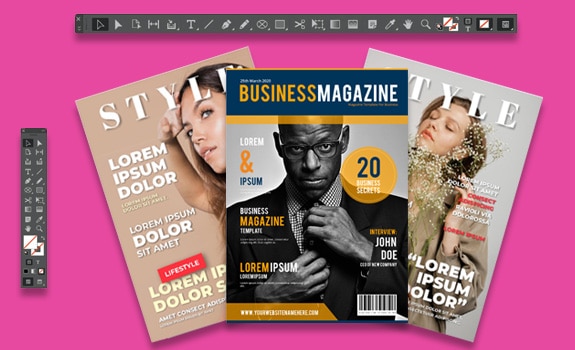
Course Overview
Adobe InDesign 2-Day Comprehensive Training. Master print and digital publishing with industry-standard tools. Ideal for designers, this hands-on course covers PDFs, digital magazines, eBooks, ePUBs, and print projects.
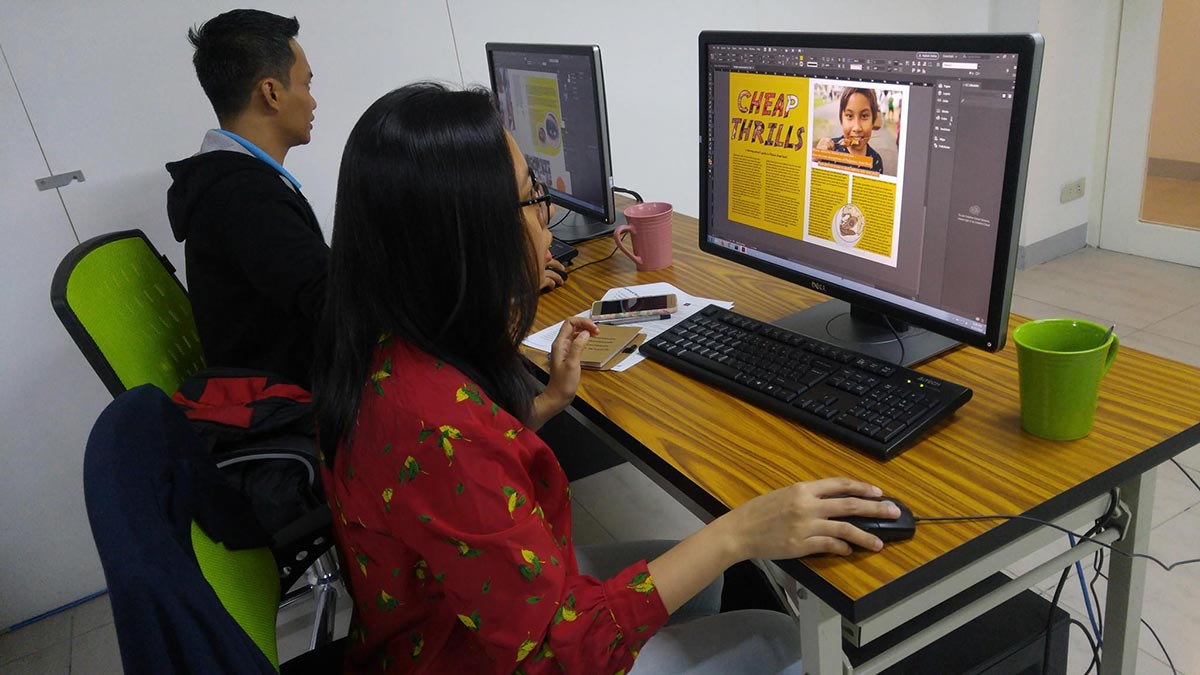
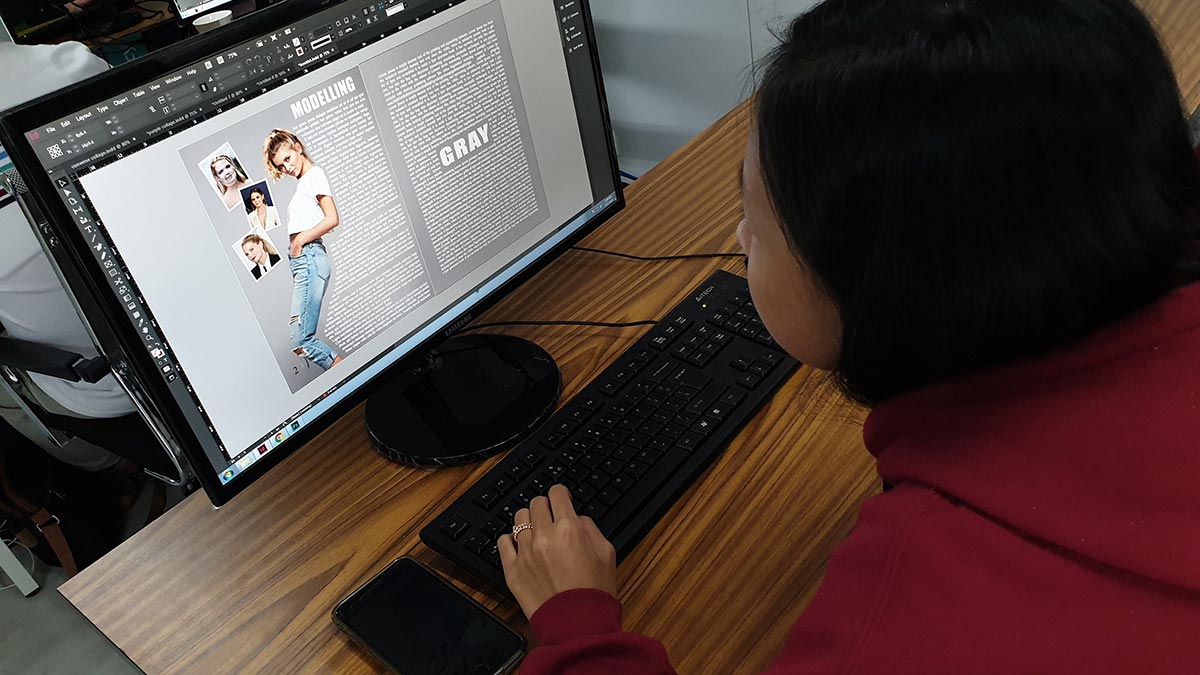
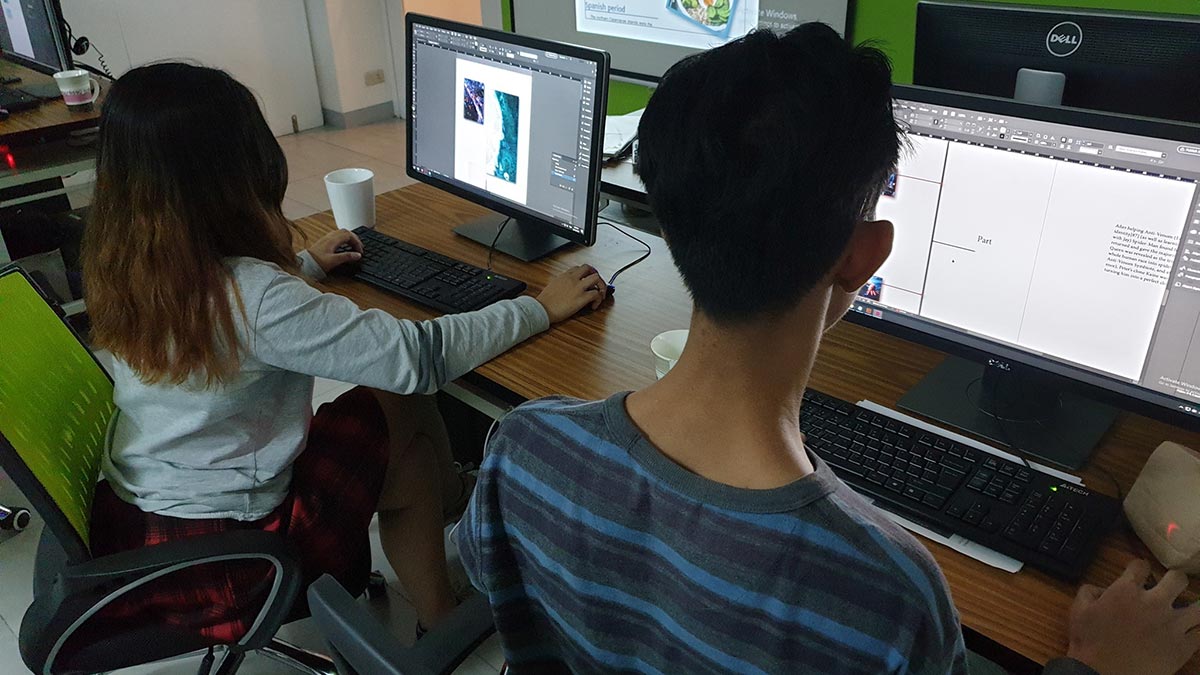
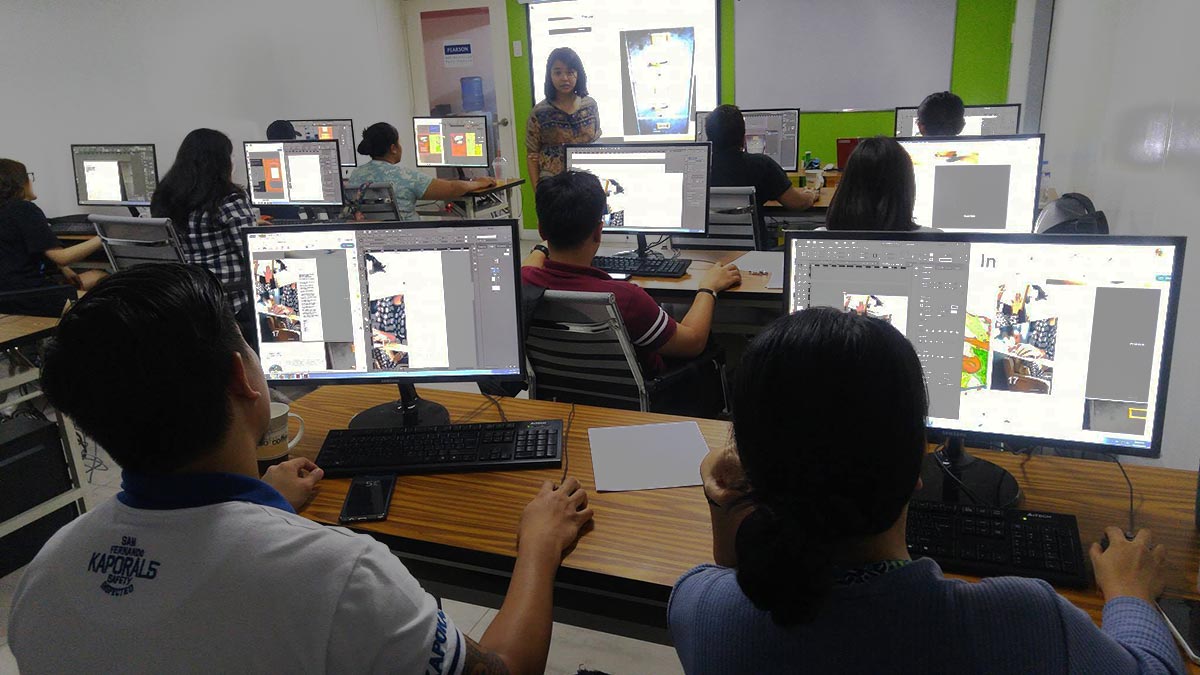
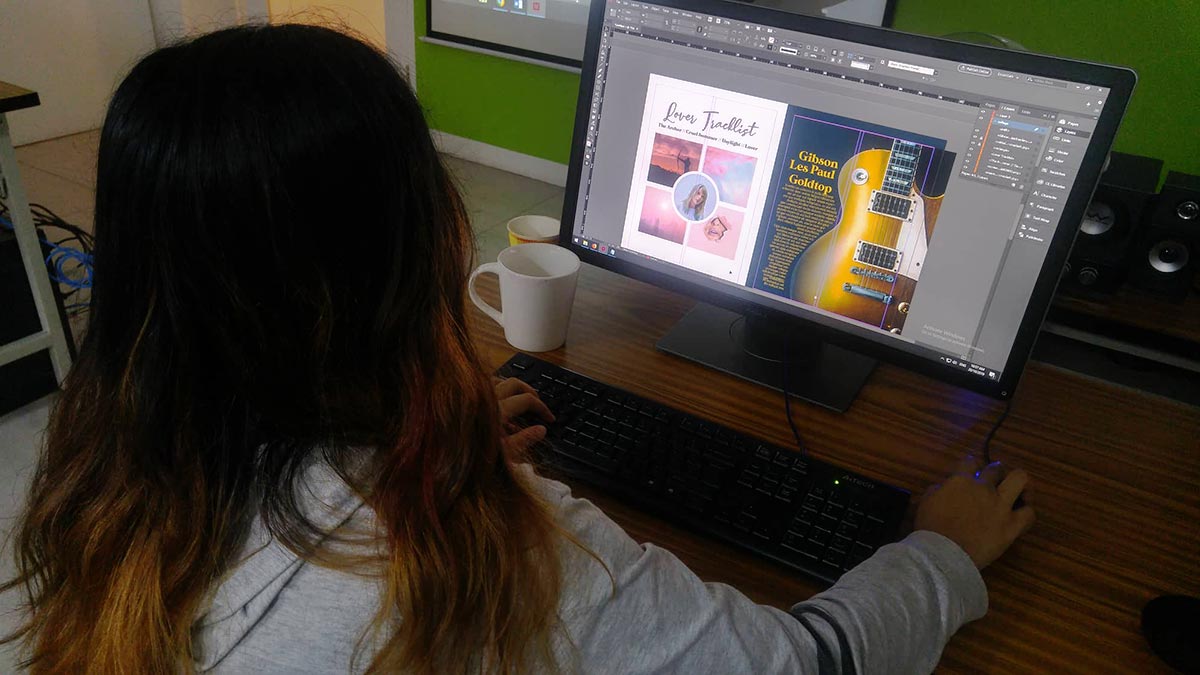
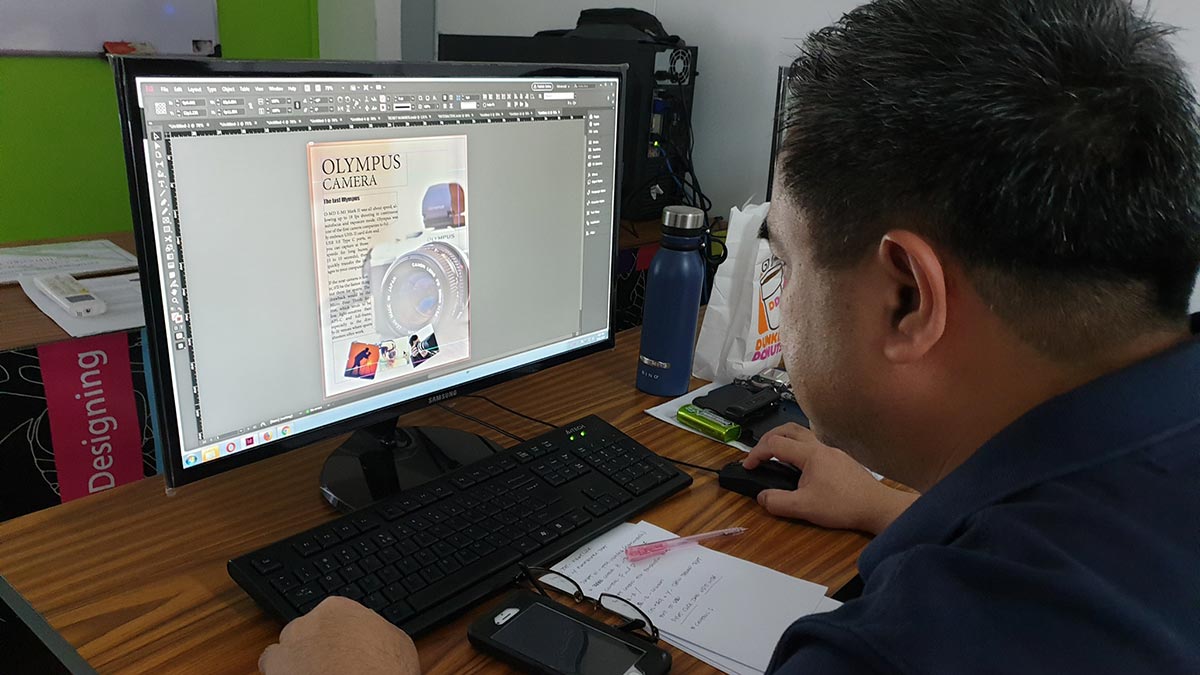
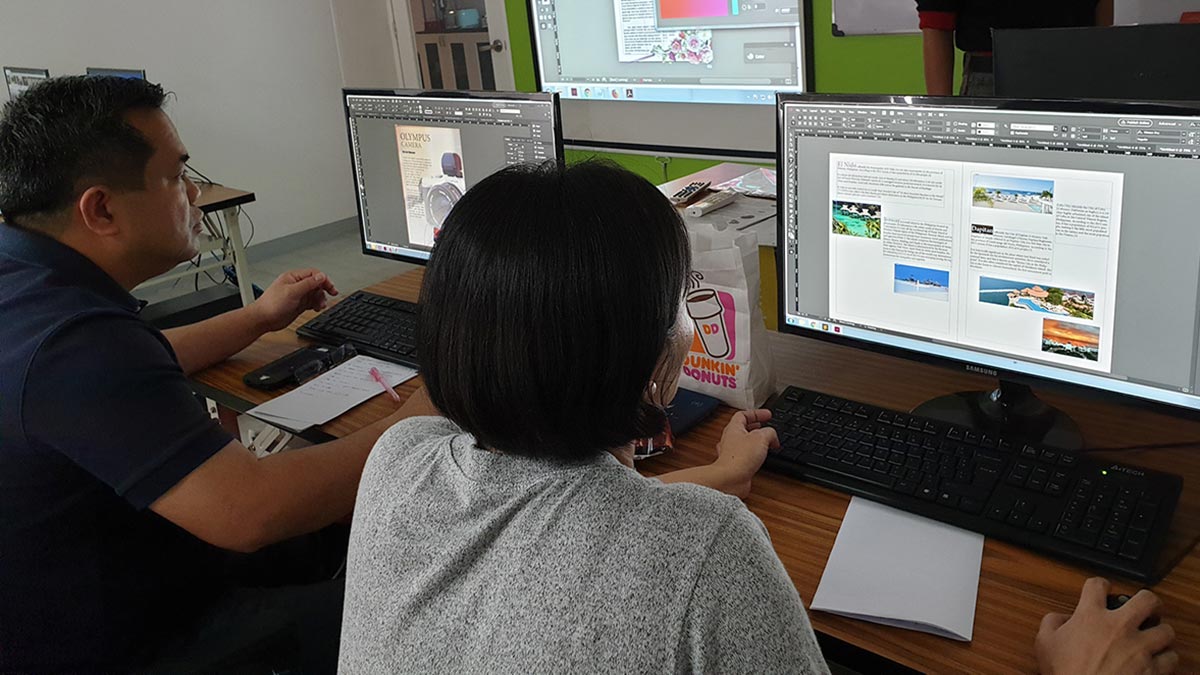
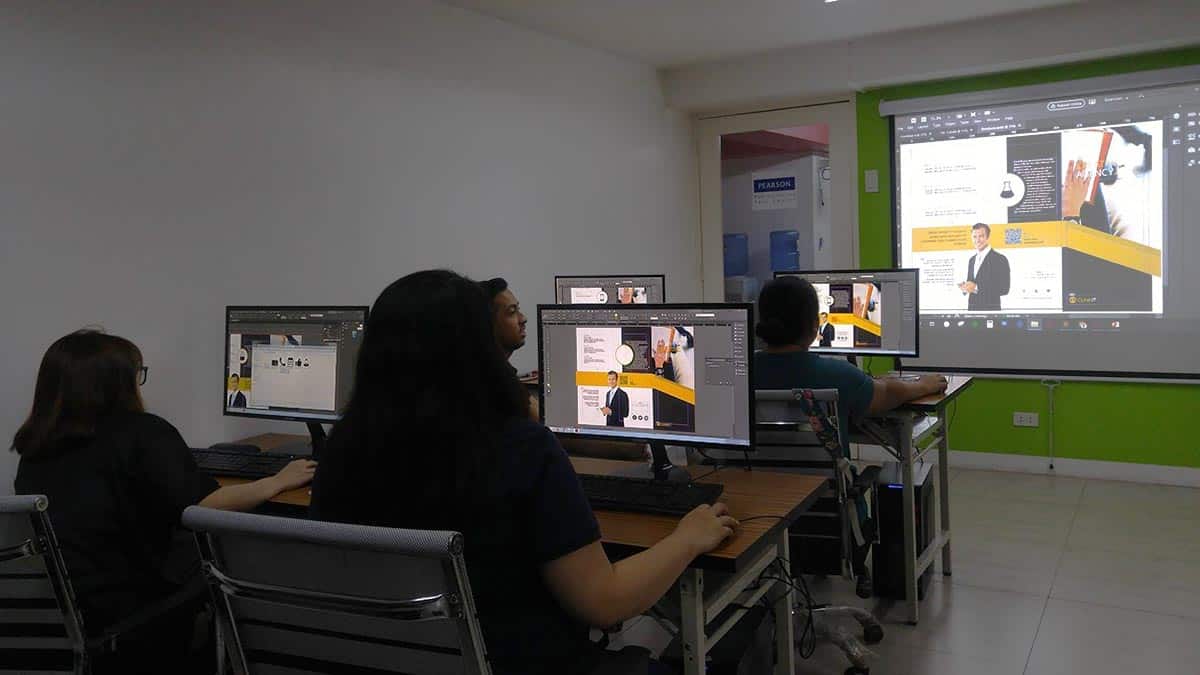
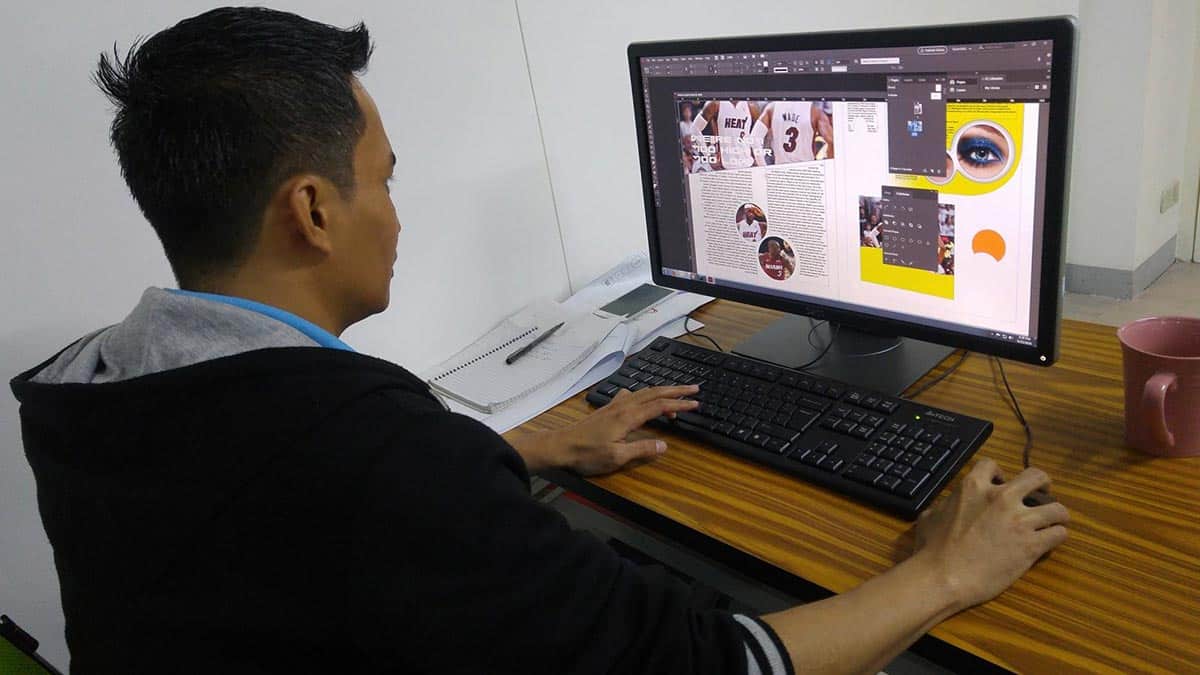
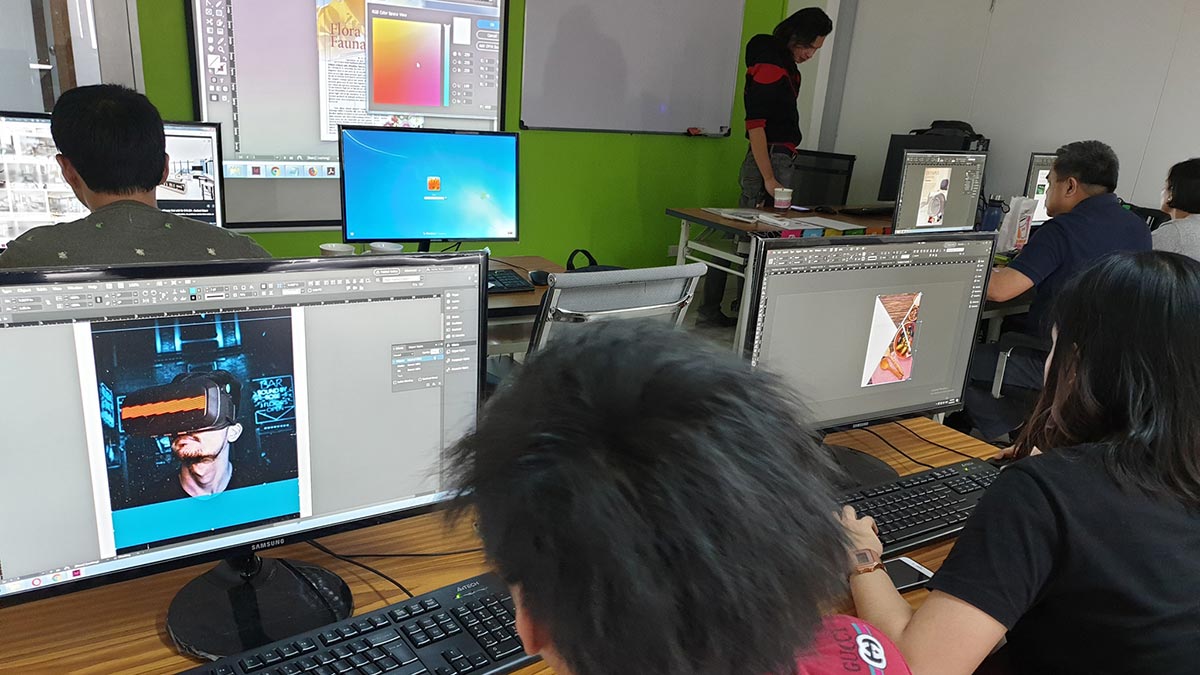
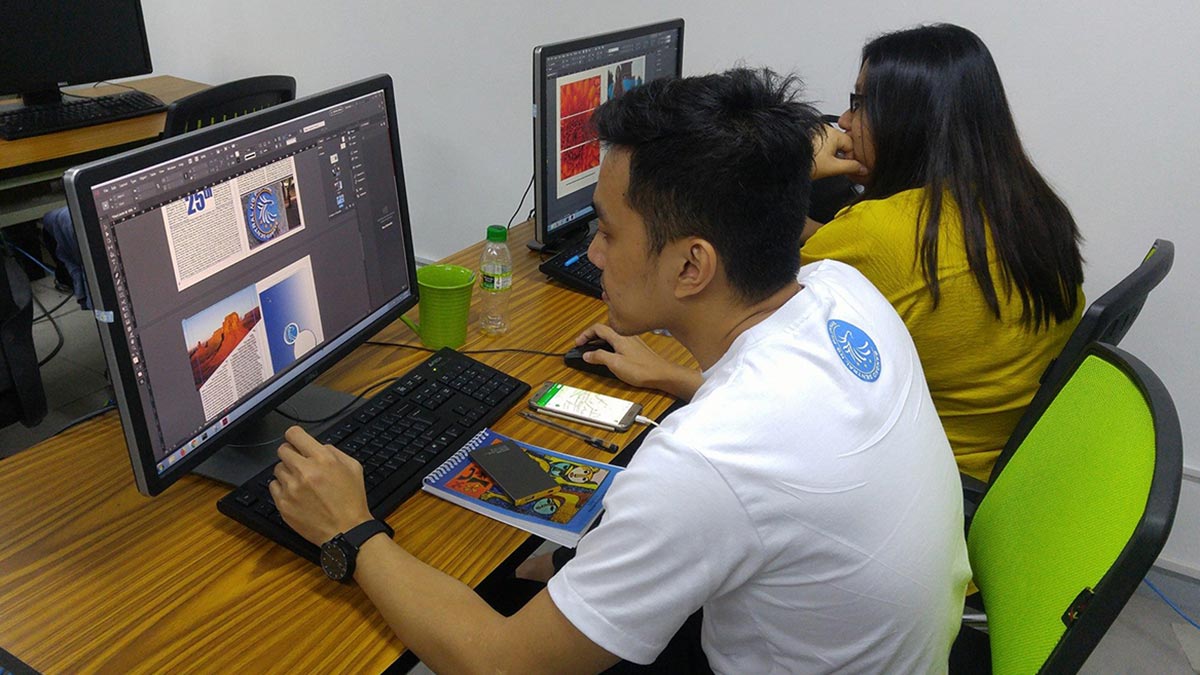
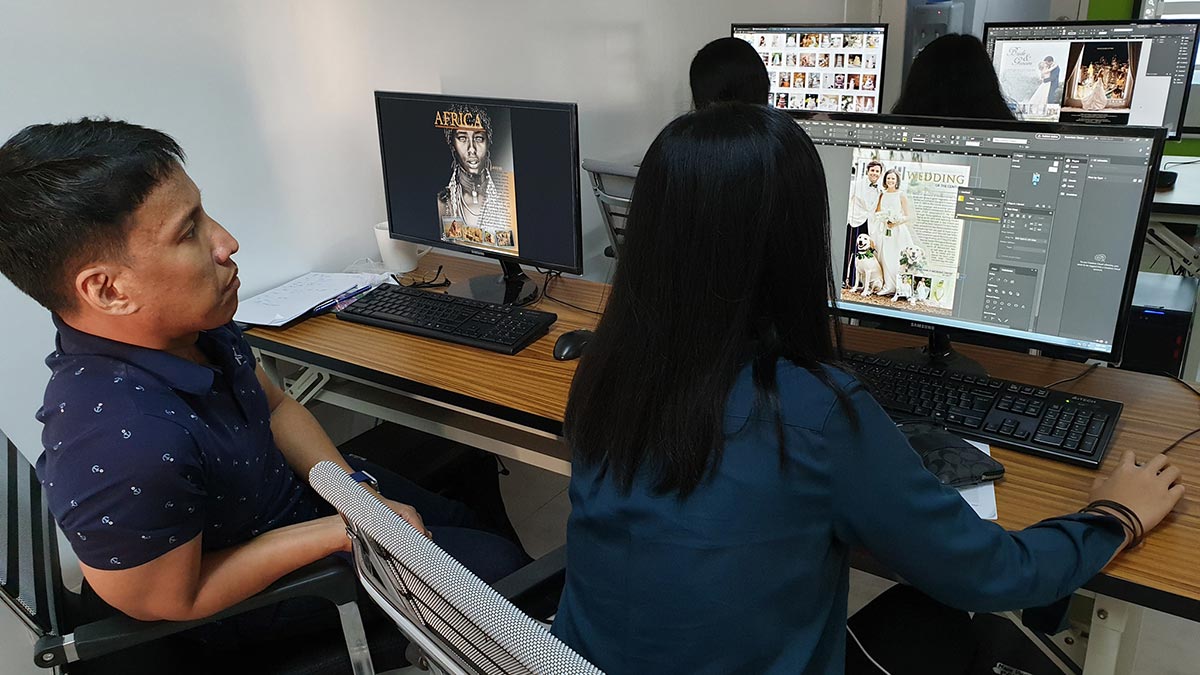
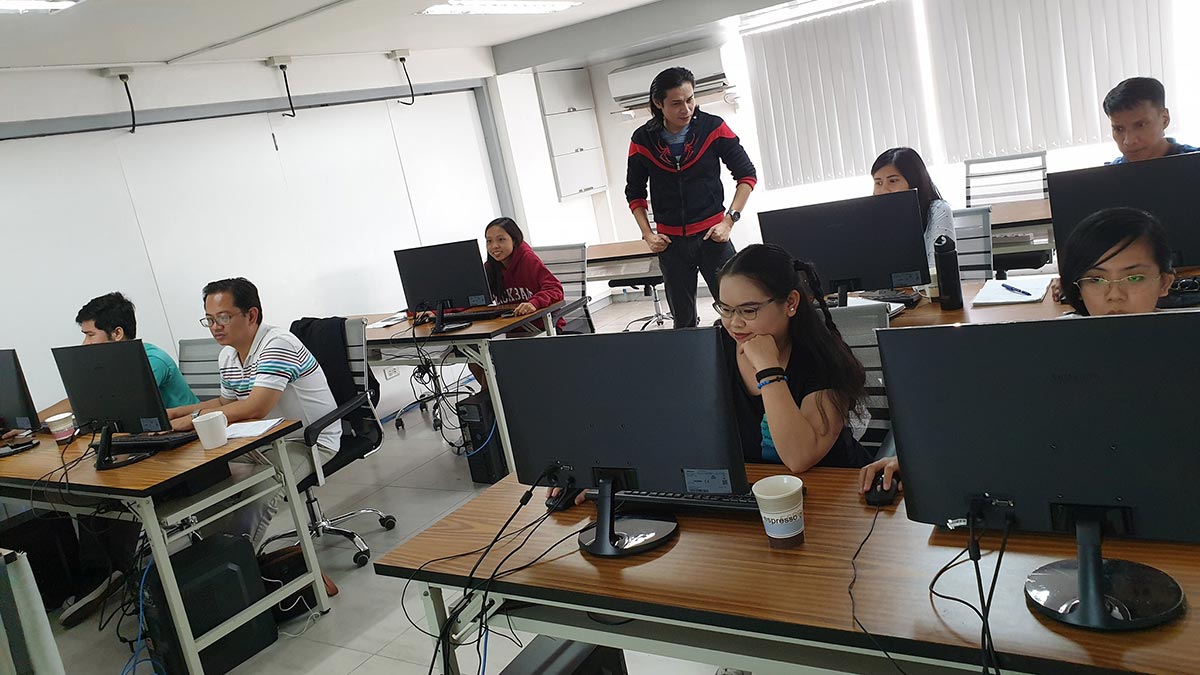
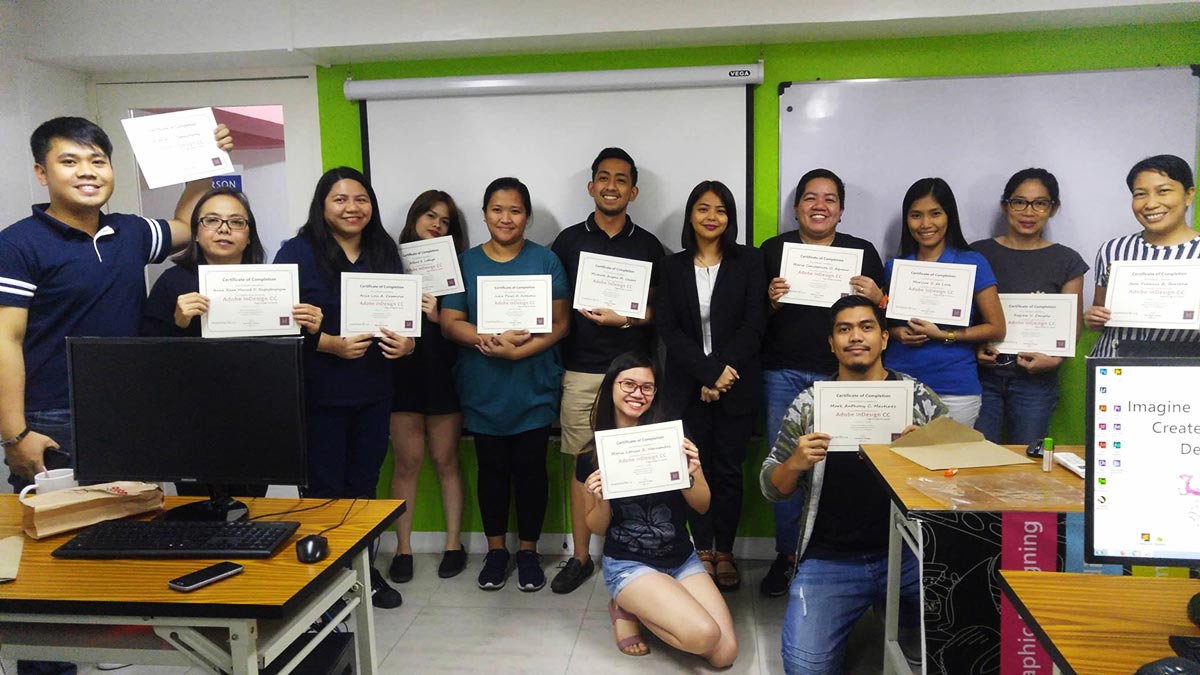
Recognized as one of the top multimedia schools in the Philippines!
- Adobe Enterprise Licensed Application
- Classes are led by Adobe Industry Professionals
- Using Adobe InDesign CC 2026 (Latest Version)
- Experience Adobe's New Artificial Intelligence Features!
- Pearson Vue Accredited Testing Center
- PhilGEPS Accredited Center
- Globally Recognized Course Certificate
Frequently Asked Questions
- Basic computer knowledge and skills in PC or Mac.
- Working knowledge in either Adobe Photoshop, or Adobe Illustrator is required.
- Experience in Print is an advantage though not required.
- Certificate of course completion
- Training references (PDF)
- Exercise materials
- Some add-ons
- Free trainer consultation
- Unlimited Free Retakes
Unlimited Retakes = Unlimited Hours of Learning!
We understand that individuals have different learning styles and paces, that’s why we offer the opportunity to learn at your own speed. If you need more time to grasp a concept, you are welcome to come back and retake the class at no additional cost. We believe in providing students with the support they need to succeed.
To Avail: Finish the course to qualify for the unlimited refresher classes
Validity: 1 Year
Adobe InDesign is a professional desktop publishing (DTP) software developed by Adobe Inc. It is widely used by designers, publishers, and marketing professionals to create and manage layouts for print and digital media. InDesign is known for its precision, flexibility, and robust tools for handling complex layouts, making it the go-to application for multi-page documents.
What is Adobe InDesign Used For?
Adobe InDesign is primarily used for creating visually appealing and well-structured layouts for various types of publications, including:
- Print Design
- Brochures, flyers, posters, business cards, and stationery.
- Magazines, newspapers, and books.
- Catalogs and product manuals.
- Digital Publishing
- Interactive PDFs, eBooks, and digital magazines.
- Online newsletters and web-ready content.
- Branding and Marketing Materials
- Consistent branding assets like letterheads, envelopes, and packaging.
- Social media graphics and ad layouts.
- Multi-Page Documents
- Managing long documents with features like master pages, styles, and tables of contents.
- Creating professional reports, portfolios, and yearbooks.
- Typography and Layout Design
- Advanced text formatting and typographic control.
- Grid-based layouts for precise alignment and spacing.
Adobe Photoshop: Photoshop is a powerful image editing tool that allows you to manipulate and enhance images, create digital illustrations, and design graphics.
Adobe Illustrator: Illustrator is a vector graphics program that allows you to create scalable designs such as logos, icons, and illustrations.
Adobe InDesign: InDesign is a layout and publishing program that is used to create print and digital designs such as books, brochures, and magazines.
- Graphic Designer: Creating layouts for magazines, brochures, and other publications.
- Marketing Specialist: Designing promotional materials like flyers, posters, and advertisements.
- Publication Designer: Working on books, eBooks, newspapers, and periodicals.
- Freelance Designer: Offering design services to clients on a project basis.
- Desktop Publisher: Preparing documents for print and digital distribution.
- Art Director: Overseeing visual aspects of publications and advertising campaigns.
- Production Artist: Finalizing and preparing designs for printing and publishing.
- Content Creator: Designing visually appealing digital content for websites and social media.
Course Outline
Introduction
- What is InDesign?
- Where and when to use InDesign
- Welcome Screen Walk-through
- Interface Navigation and Workspace Customization
Creating a Document
- Creating new documents
- Opening existing documents
- Saving and reverting documents
- Using multiple Undo and Revert
- Setting margin and column guides
- Using ruler guides
- Working with Bleeds
- Bleeding colors or images off the side of the page
Workspace and Tool Overview
- Understanding the Application window
- Navigating pages
- Zooming and magnifying
- Setting rulers and measurements
- Saving time by making workspaces
- Setting the view quality of artwork
- Using the Tool panel
- Learning and editing keyboard shortcut
- Overview of Individual Tools
Managing Pages
- Inserting, deleting, and moving pages
- Changing page size
- Adding page numbering
- Creating and applying master pages
- Overriding master page items
Text
- Understanding text frames
- Typing and editing
- Filling with placeholder text
- Inserting special characters
- Importing text
- Putting text on a path
- Checking spelling
- Using Find/Change
Graphics
- Importing graphics
- Using the Links panel
- Embedding links
- Turning image layers on and off
Formatting Objects
- Selecting objects
- Applying basic strokes and fills
- Using advanced strokes
- Adjusting transparency
- Adding drop shadows
- Applying feathering
- Copying formatting with the Eyedropper tool
- Making polygons and starbursts
Color
- Creating color swatches
- The danger and power of unnamed colors
- Creating gradient swatches
- Applying gradients
Managing Objects
- Managing objects in the Layers panel
- Adding rounded corners and other corner options
- Grouping objects
- Locking objects
- Understanding text wrap
Transforming Objects
- Duplicating objects
- Rotating objects
- Scaling objects
- Mirroring objects
Character Formatting
- Applying basic character styling
- Applying advanced character formatting
- Changing case
- Using Find/Change for text formatting
- Using Find Font
Paragraph Formatting
- Applying formatting to a paragraph
- Spanning a paragraph across multiple columns
- Splitting a paragraph into multiple columns
- Using drop caps
- Adjusting text hyphenation
- Adding automatic bullets
Styles
- Creating and applying paragraph styles
- Using object styles
Tables
- Creating a table
- Adjusting rows and columns
- Formatting a table
- Adding headers and footers
- Applying table styles
Preflighting
- Checking your document with the Preflight panel
Packaging, Printing, and Exporting
- Packaging for output
- Exporting a PDF
- Exporting an interactive PDF
Regular Rate
₱11,000
/pax
- Basic to Advanced Coverage
- Using Adobe Enterprise License
- Certificate of Completion
- Training Materials and References
- Free Trainer Consultation
- Unlimited Class Retakes within 1 Year
New Students get a ₱1,000 discount upon registration
Returning students get a ₱1,500 discount upon registration
Enroll 4 students and get an extra ₱500/pax off, on top of existing discounts.
January 2026
February 2026
About the Registration
Feel free to register! Registering does not commit you to paying for the course immediately. Registration helps us track attendee numbers and enables us to stay in touch. Payment will only be requested once the course is confirmed to proceed.
Note: When choosing a schedule, you are limited to the available training dates posted on our website.