
Adobe Illustrator
with Mastery in Generative Ai

Course Overview
This 3-day Adobe Illustrator Training is designed to equip students with proper the skills to create professional graphic designs for web and print. From logos to layouts, and seamless Photoshop integration, this course has it all!

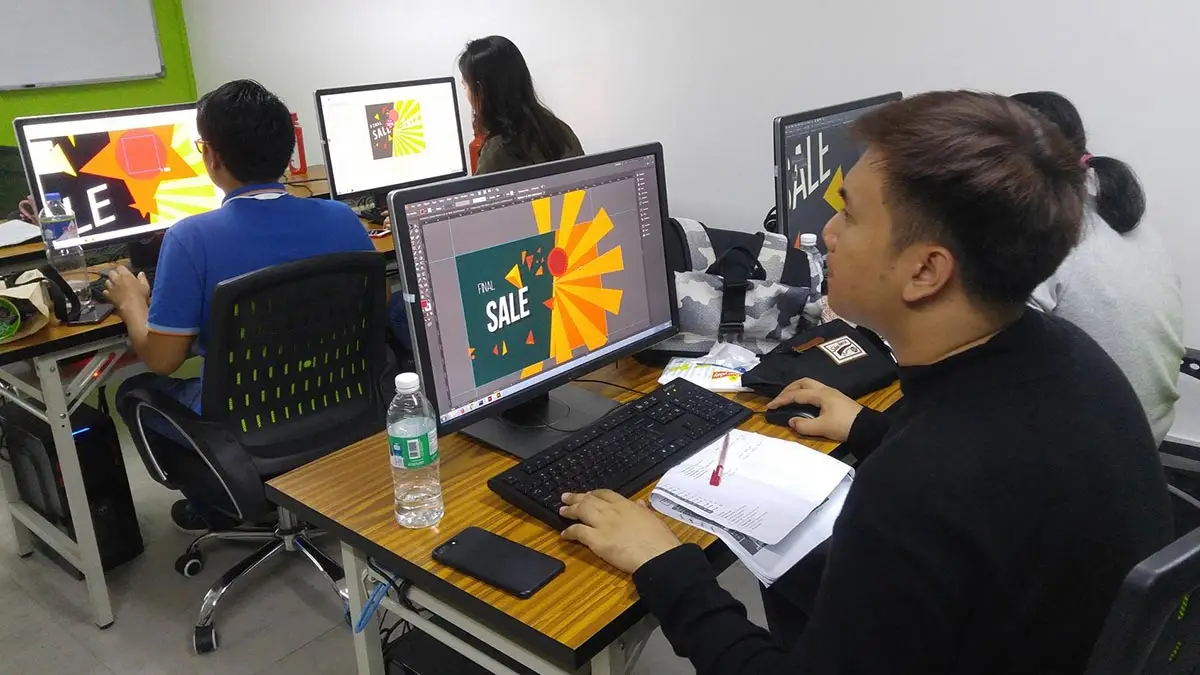


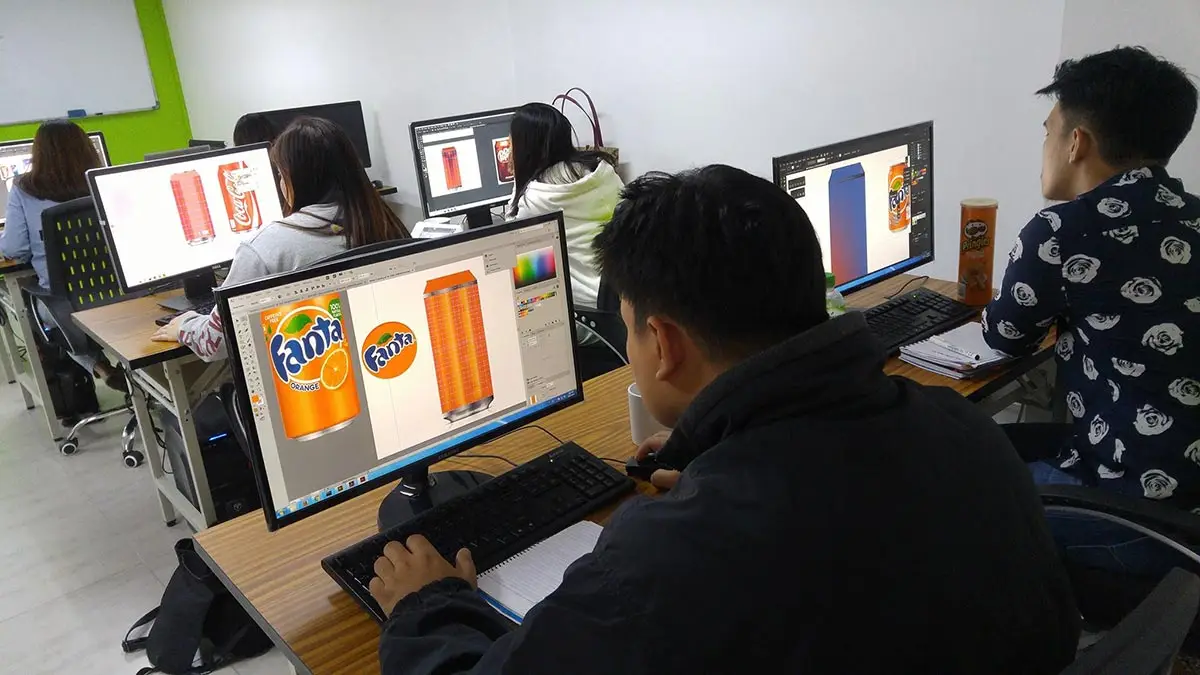


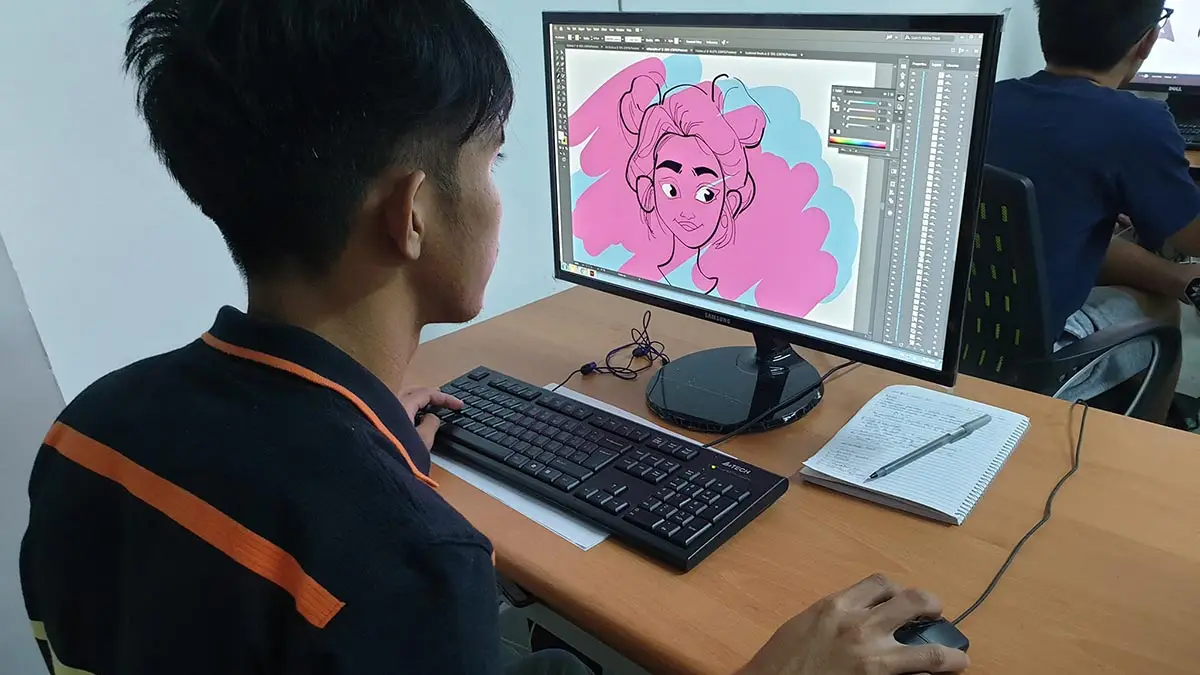
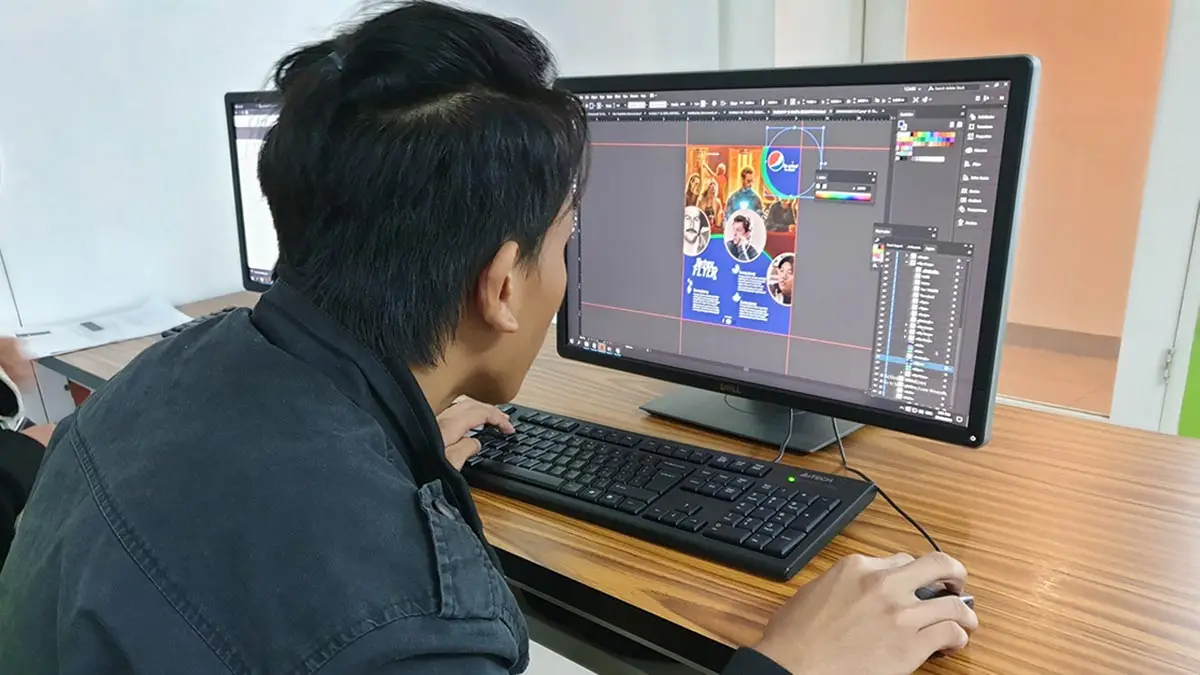
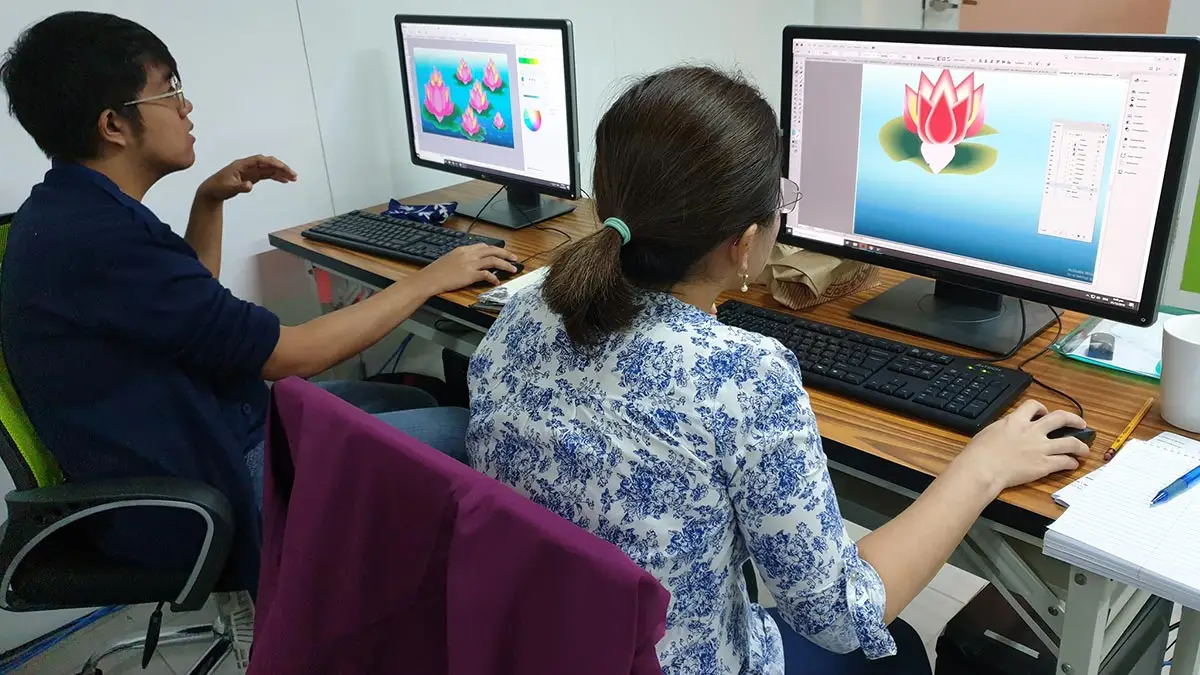
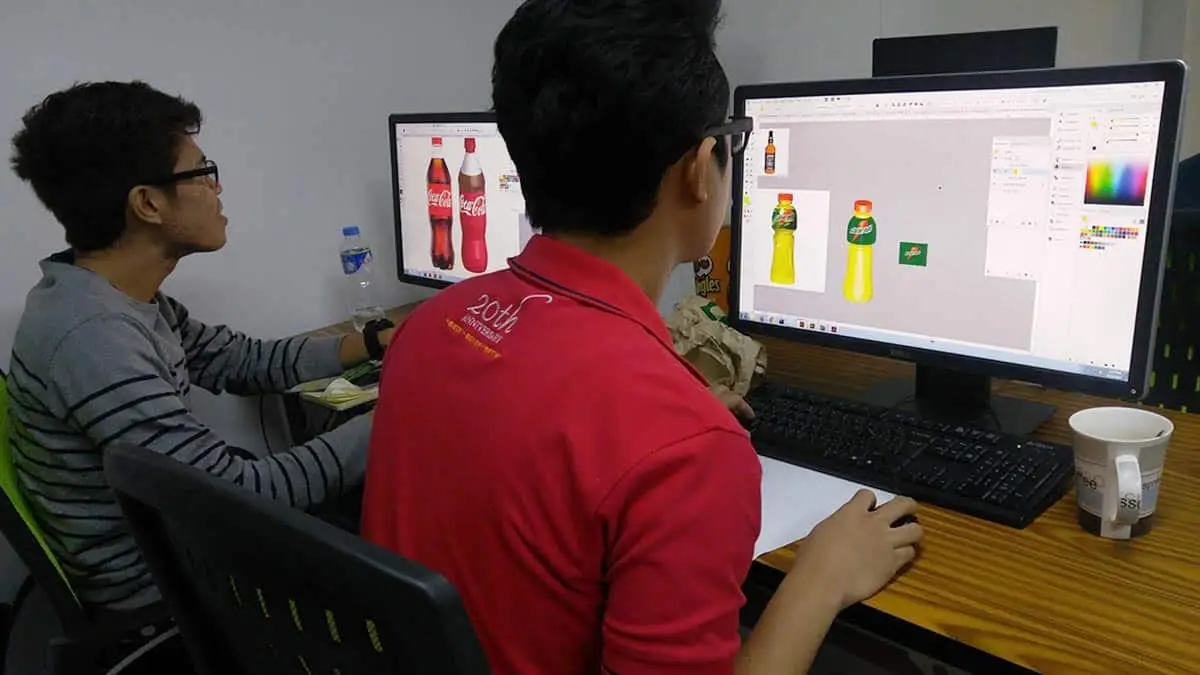
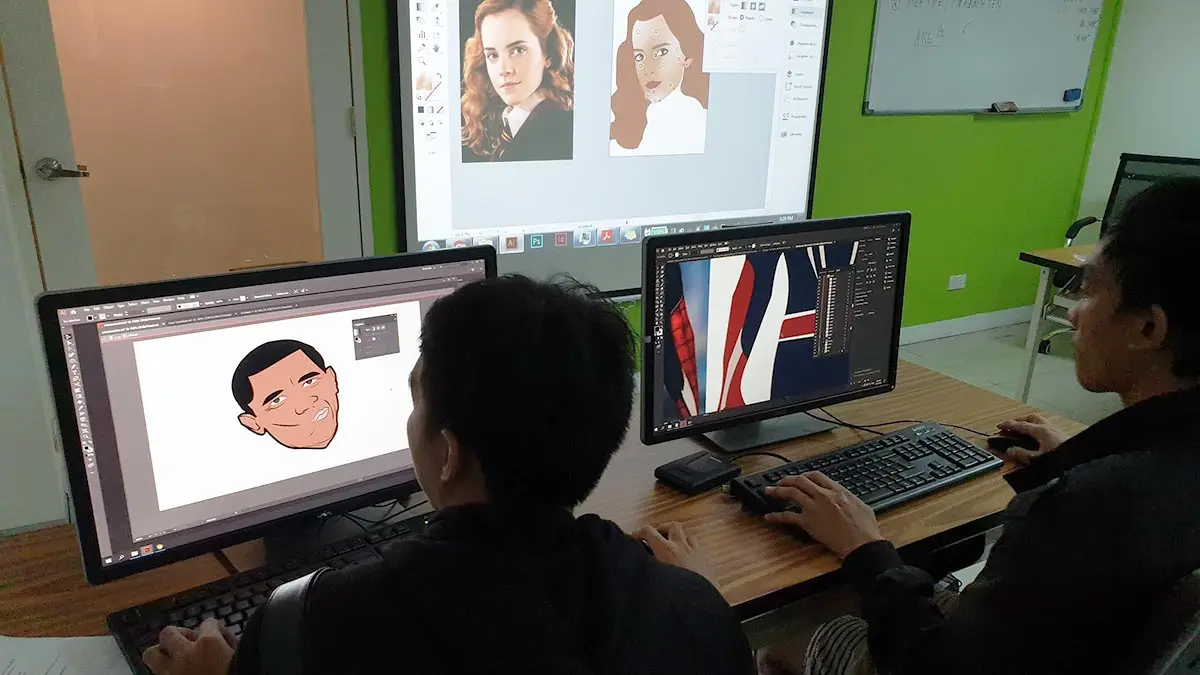
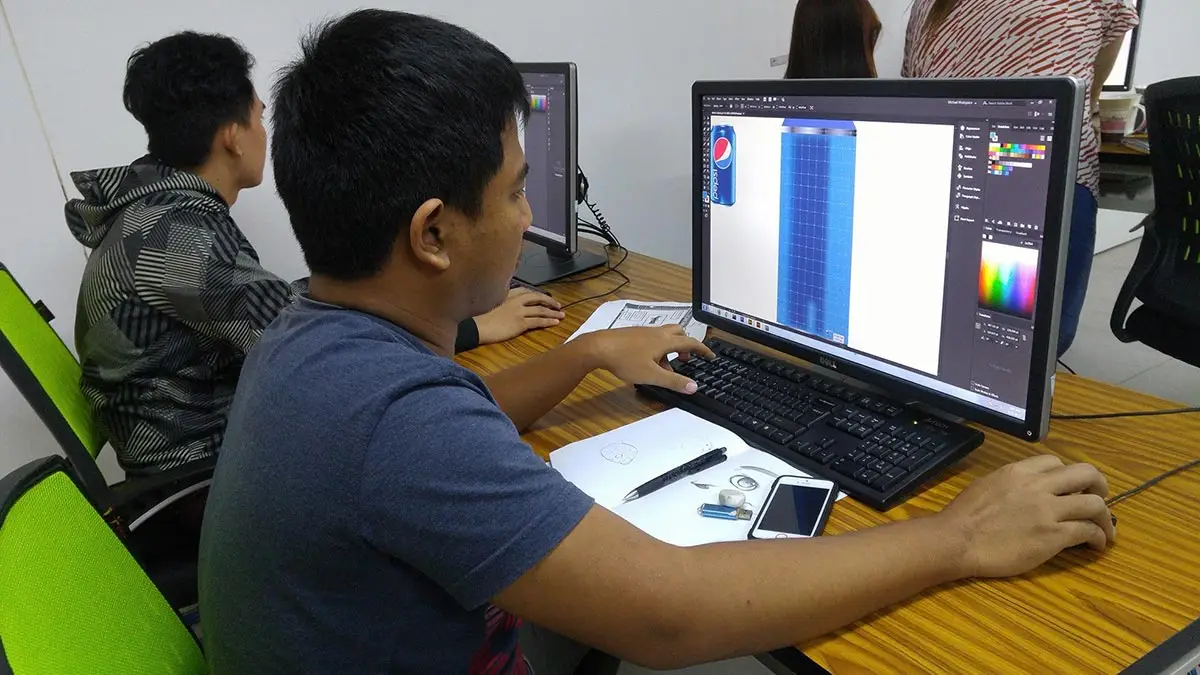

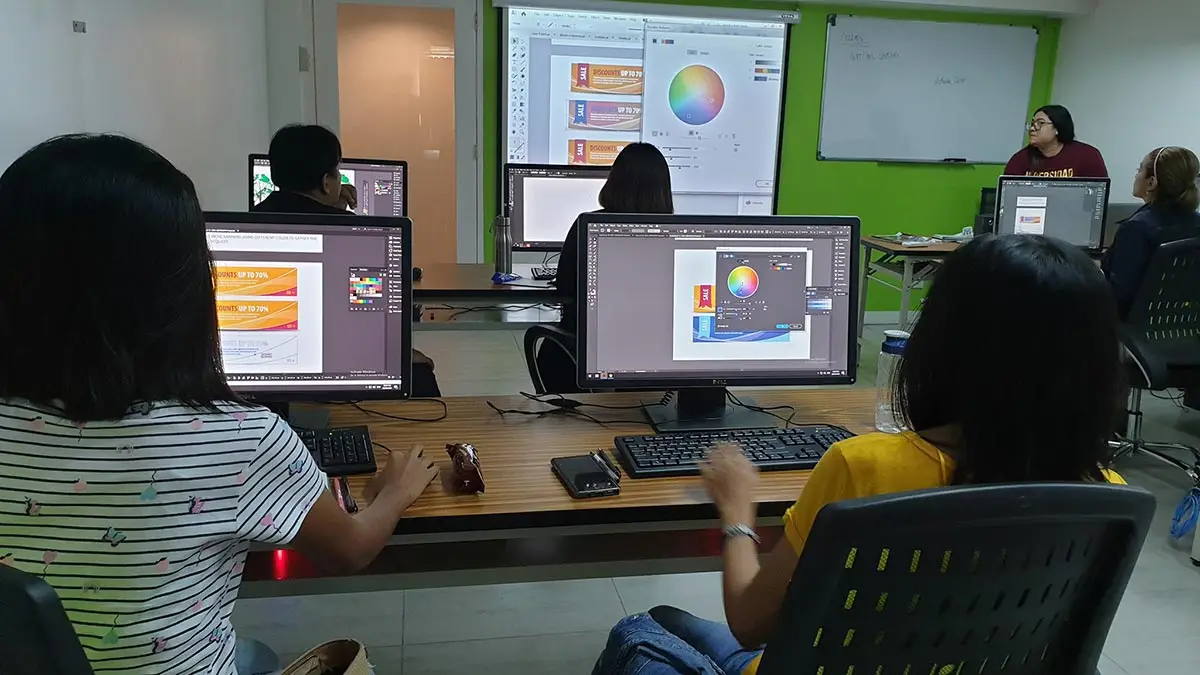
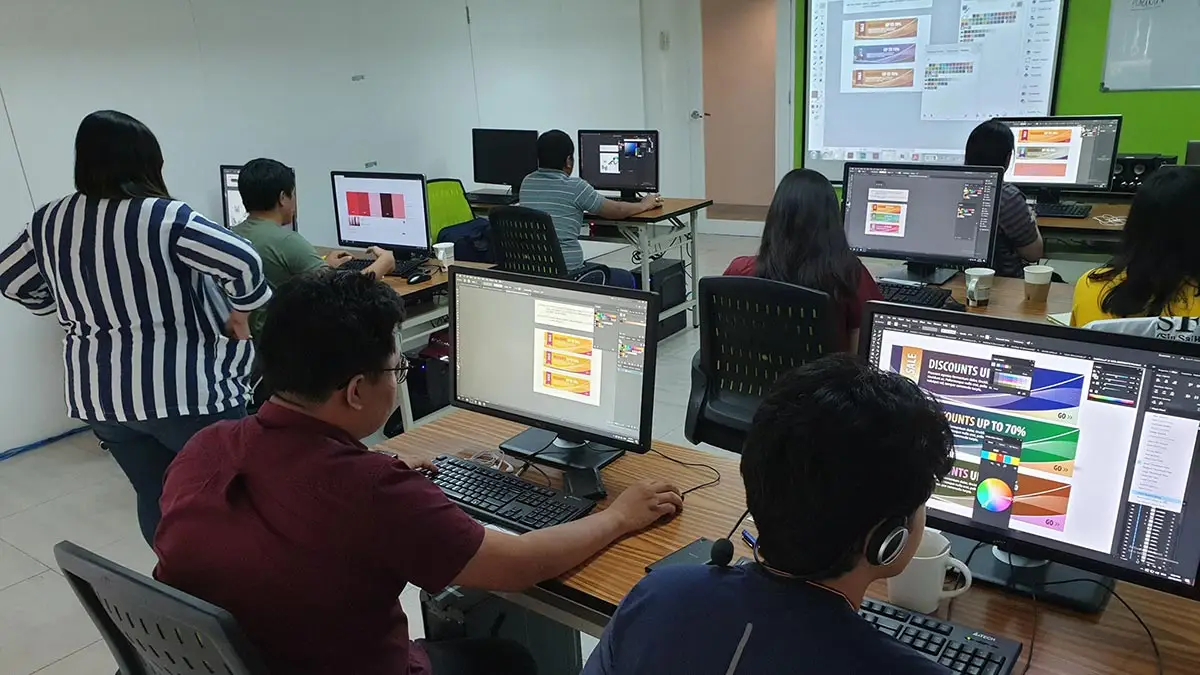
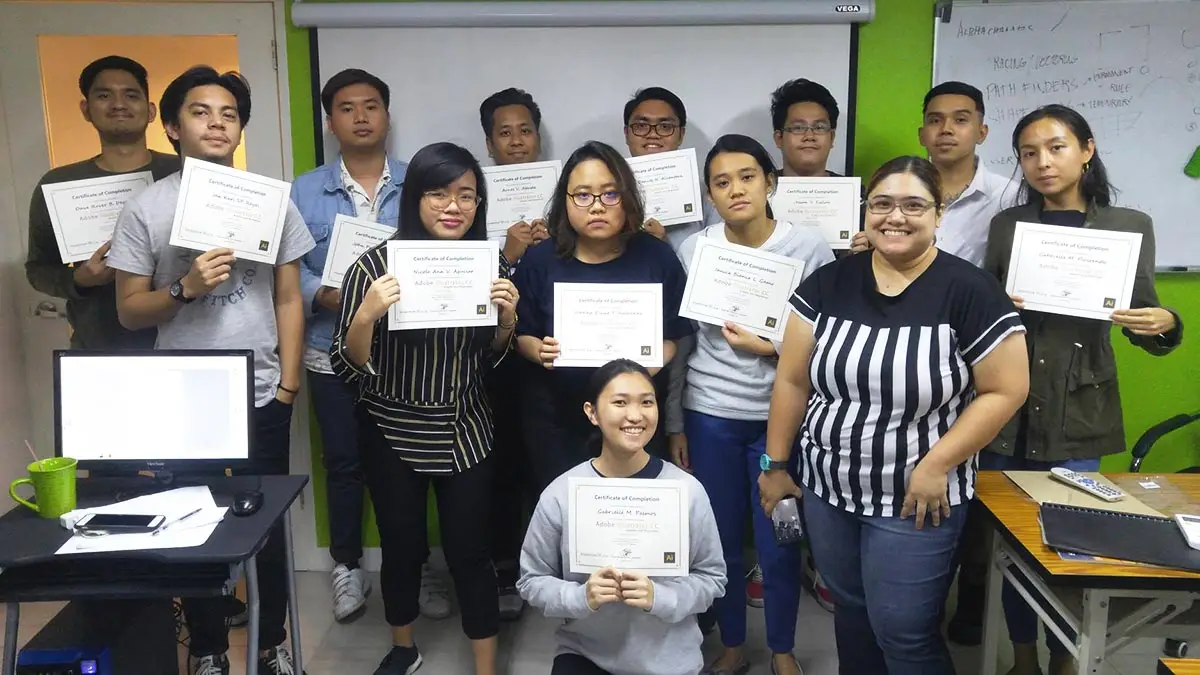
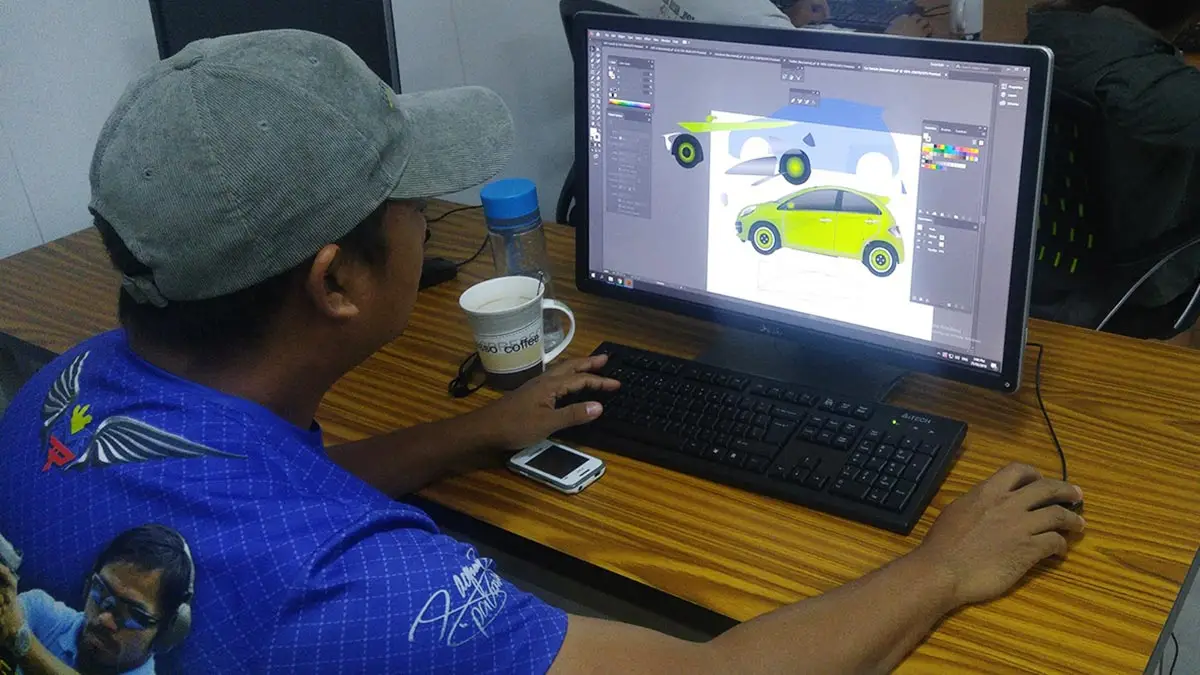
Hailed as one of the top multimedia schools in the Philippines!
- Uses Adobe Enterprise Licensed software
- Taught by Adobe industry professional
- Trained on Adobe Illustrator CC 2026 (latest version)
- Hands-on with Adobe’s newest AI-powered features
- Pearson Vue Accredited Testing Center
- PhilGEPS Accredited Center
- Receive a globally recognized course certificate
Course Outline
GFX Design Essentials (Bonus Course)
Introduction
- What is Adobe Illustrator?
- Performing a Factory Reset
- The Welcome Screen
- Understanding the Illustrator Workspace
Customizing Illustrator’s UI/UX
- Customizing Keyboard Shortcuts
- Customizing Preferences
- Managing Panels, Tools, and Menus
- Customizing and Saving Workspaces
Working with Documents
- Creating new documents for Print and Screen
- Setting document size, resolution, color mode, and bleeds
- Creating and saving custom document presets
- Opening, saving, and closing documents
- Working with multiple documents
- Importing and placing files into Illustrator
- Creating and managing artboards
Integration with other Adobe Software
- Exporting to Adobe Photoshop
Illustrator Basics
- Selecting and moving objects
- Grouping and ungrouping objects
- Zooming, panning, and nudging
- Outline and Trim View
- Rulers, Guides, Grids, and Smart Guides
- Align and Distribute
Creating Simple Vector Shapes
- Creating shapes with Shape Tools
- Creating lines with Line Tools
Manipulating Shapes, Objects & Paths
- Understanding Paths and Anchor Points
- Editing anchor points with the Direct Selection Tool
- Adding and deleting anchor points
- Converting and adjusting anchor points with the Anchor Point Tool
Drawing Tools
- Drawing freeform paths with the Pencil Tool
- Drawing with the Paintbrush Tool
- Creating precise paths with the Pen Tool
- Creating shapes with the Blob Brush Tool
Working with Layers
- Object Stacking
- Purpose and Benefits of Using Layers
- Adding, Deleting, and Renaming Layers
- Sublayers and Stacking Order
- Difference Between Layers and Groups
- Layer Visibility, Locking, and Selection
- Reordering and Nesting Layers
- Moving Objects Between Layers
- Using Layer Colors Effectively
Object Transformation
- Shear
- Reflect
- Transform Each
- Rotate
- Free Transform
Cut, Merge and divide objects
- Joining and Averaging Paths
- Cutting and Dividing Paths
- Joining Shapes, Objects and Paths
- Compound Paths
- Using Pathfinder and Shape Modes
- Using the Shape Builder Tool
Type
- Type tools
- Create Type on a Path
- Create Outlined Type
- Apply an Envelope Distort to Type
Working and Managing Colors
- Color fills and strokes
- Using Solid Colors
- Color swatches and libraries
- Working with Gradients
Gradients and Patterns
- Creating and saving Gradients
- Applying Gradients
- Creating and saving Patterns
- Applying Patterns
- Gradient and Pattern Libraries
Perspective Grid
- Perspective Drawing
Masking and Cropping
- Creating simple Clipping Masks
- Type Clipping Mask
- Opacity Mask
- Manipulating Masks
- Cropping
Envelopes, Meshes, Blends
- Warp
- Top Object
- Mesh Tool
- Warp Tool
Symbols
- Using Symbols Libraries
- Creating a New Symbol
- Sharing Libraries
Working with Appearance
- Effects Menu
- Appearance Panel
- Multiple Strokes and Fills
Brushes
- Creating a Calligraphic Brush
- Creating an art Brush
- Creating a Scattered Brush
- Creating a Pattern Brush
Creating a Logo
- Creating a multi-use logo
- Saving and exporting for multi-use
Live Trace and Live Paint
- Live Trace an existing piece of artwork
- Tracing options
- Converting to a Live Paint object
- Color a Live Paint object
Working with 3D
- Extrude
- Rotate
- Semi-revolve
- Bevel
Saving your File
- Understanding File types
- Local vs Cloud Saving
- Saving an AI File
- Exporting for Print
- Exporting for Screen
- Asset Export
Artificial Intelligence Features (New Features)
- Retype
- Shape on a Path
- Mockup
- Generate Vectors
- Generative Shape Fill
- Text to Pattern
- Generative Recolor
Frequently Asked Questions
What are the prerequisites for Adobe Illustrator training?
- Basic Computer knowledge and Skills in PC or Mac.
- Must have completed the Graphic Design Essentials Course (FREE with Adobe Illustrator enrollment!)
- Knowledge in any graphic design applications such as Adobe Illustrator and CorelDRAW can be an advantage though not required
What's included after completing the training?
- Certificate of course completion
- Training references (PDF)
- Exercise materials
- Some add-ons
- Free trainer consultation
- Unlimited Free Retakes
How to avail the Unlimited Free Retakes?
Unlimited Retakes = Unlimited Hours of Learning!
We understand that individuals have different learning styles and paces, that’s why we offer the opportunity to learn at your own speed. If you need more time to grasp a concept, you are welcome to come back and retake the class at no additional cost. We believe in providing students with the support they need to succeed.
To Avail: Finish the course to qualify for the unlimited refresher classes
Validity: 1 Year
Who is this Adobe Illustrator training designed for?
- Graphic Designers: Professionals who create logos, illustrations, and other visual content.
- Illustrators: Artists specializing in creating detailed and intricate illustrations.
- Marketing Professionals: Individuals involved in creating promotional materials, advertisements, and brand assets.
- Web Designers: Designers who need to create scalable vector graphics for websites and web applications.
- UX/UI Designers: Designers focusing on user interfaces and user experiences, creating icons, buttons, and other graphical elements.
- Print Designers: Professionals working on printed materials such as brochures, posters, and business cards.
- Fashion Designers: Designers who create patterns, textiles, and other fashion-related graphics.
- Architects and Urban Planners: Professionals who use vector graphics for technical drawings and visualizations.
- Students and Educators: Individuals in academic settings learning or teaching graphic design and digital art.
- Freelancers and Small Business Owners: Individuals who need to create their own marketing and branding materials.
What career paths are available for Illustrator-trained professionals?
Proficiency in Adobe Illustrator is a core requirement for numerous high-paying creative and technical roles, including:
- Brand Identity Designer: Creating logos and corporate visual standards.
- UI Designer: Developing custom icons and interface assets for apps.
- Packaging Designer: Designing dielines and labels for consumer products.
- Fashion Illustrator: Drafting technical sketches and textile patterns.
- Infographic Specialist: Visualizing complex data and statistics.
Enroll now & Get a FREE
Graphic Design Essentials Course
Enroll 4 & get extra ₱500/pax off
Retake the course at no extra cost
- Basic to Advanced Coverage
- Using Adobe Enterprise License
- Certificate of Completion
- Training Materials and References
- Free Wifi Access
- Free Unlimited Coffee
- Free Trainer Consultation
- Free Unlimited Class Retakes
OCTOBER 2026
About the Registration
Feel free to register! Registering does not commit you to paying for the course immediately. Registration helps us track attendee numbers and enables us to stay in touch. Payment will only be requested once the course is confirmed to proceed.
Note: When choosing a schedule, you are limited to the available training dates posted on our website.