
CorelDRAW
Course Overview
CorelDRAW is a professional vector illustration and layout suite widely used for Desktop Publishing (DTP), branding, and large-format advertising. Renowned for its intuitive learning curve, it is the preferred choice for high-precision physical production, including Direct-to-Film (DTF) shirt printing, vinyl decals, and Cutter Plotter integration.
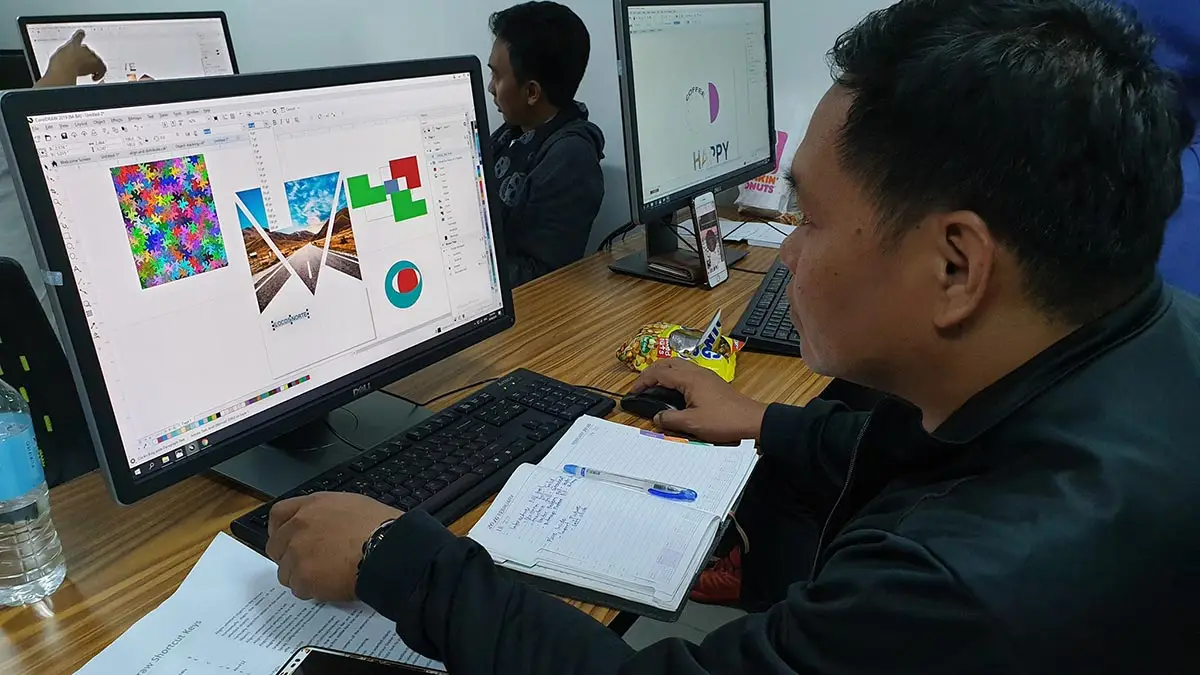
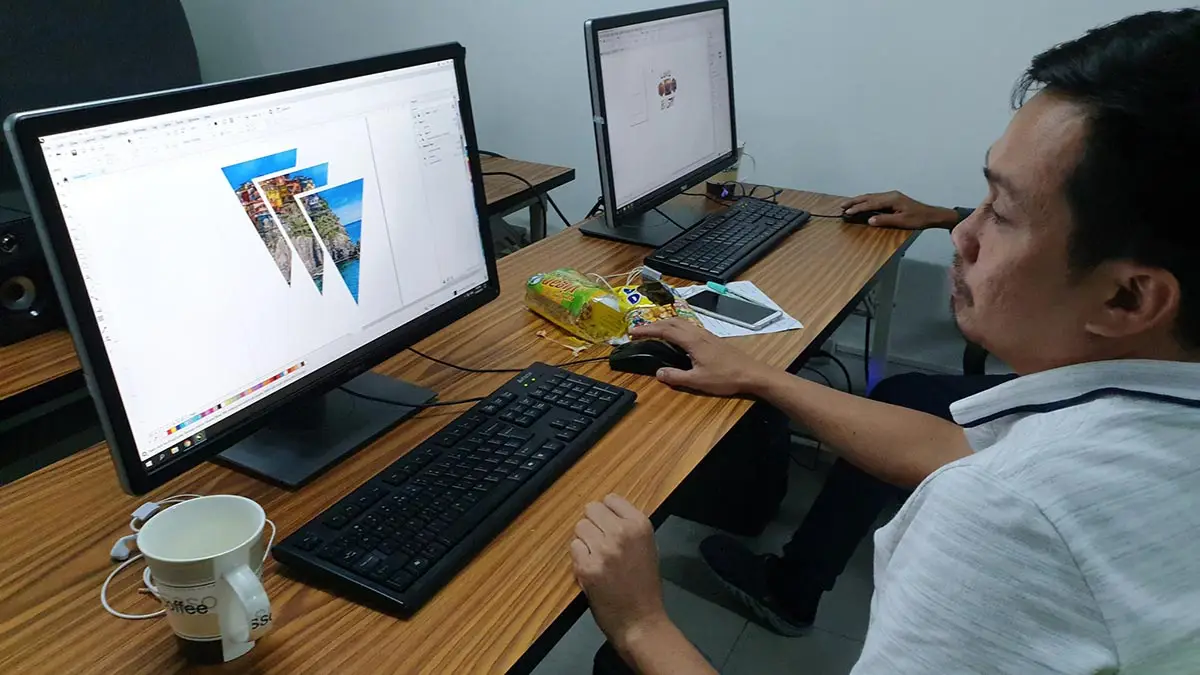
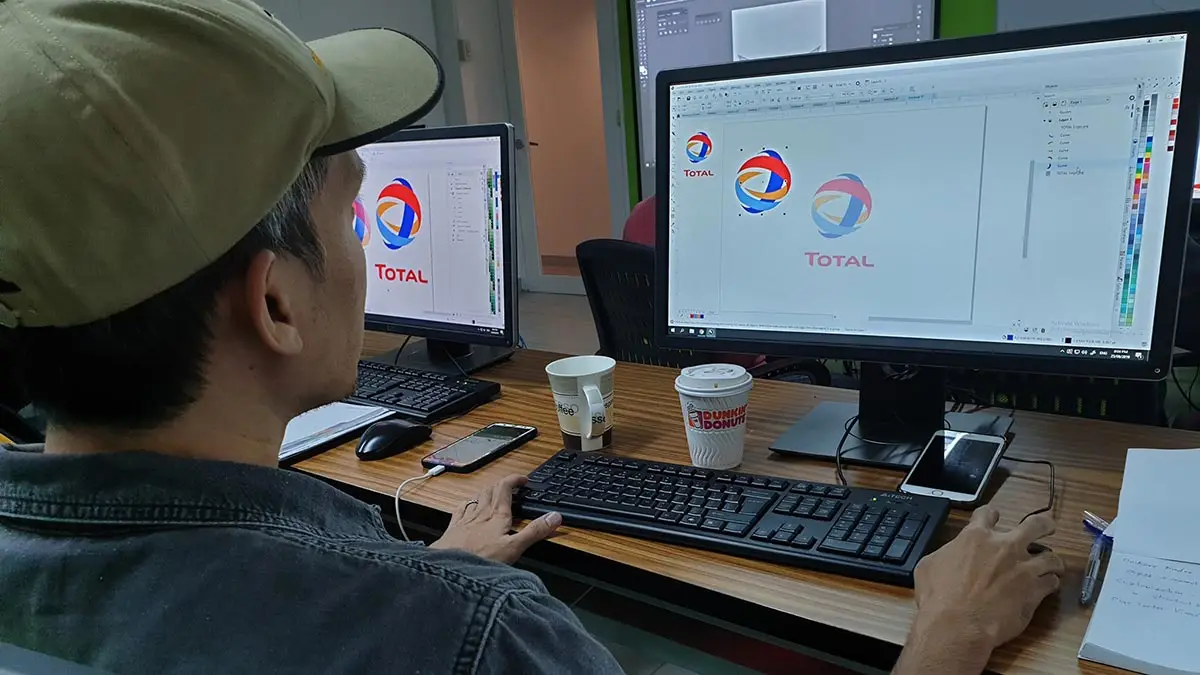
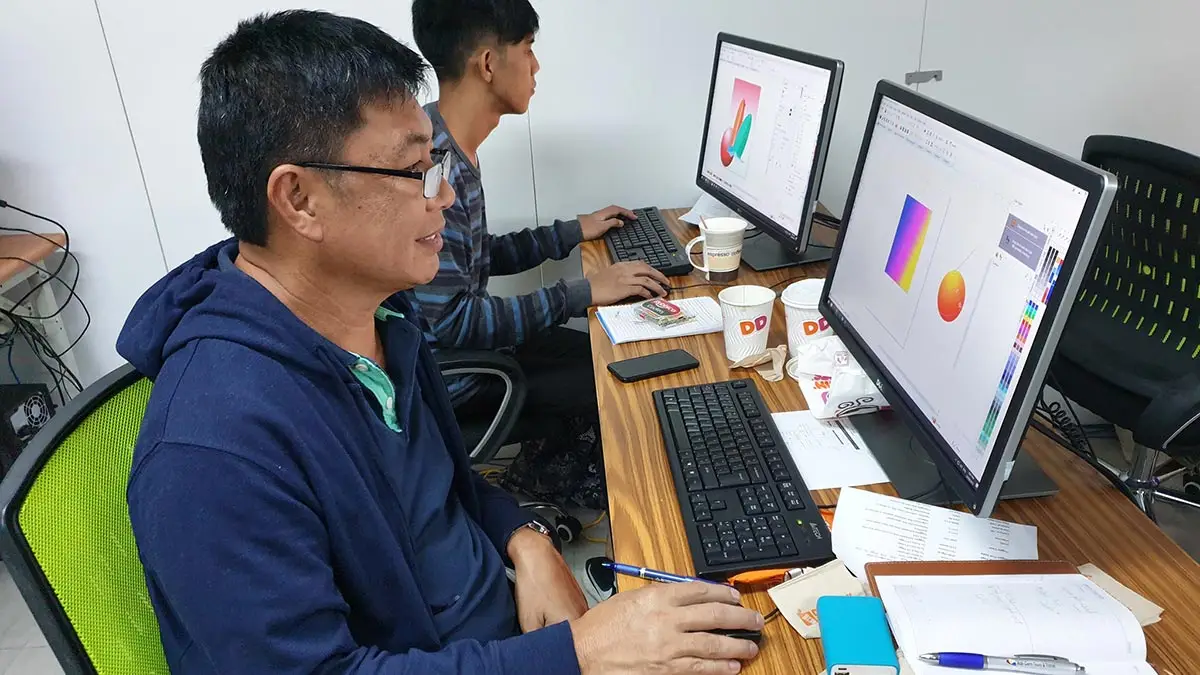
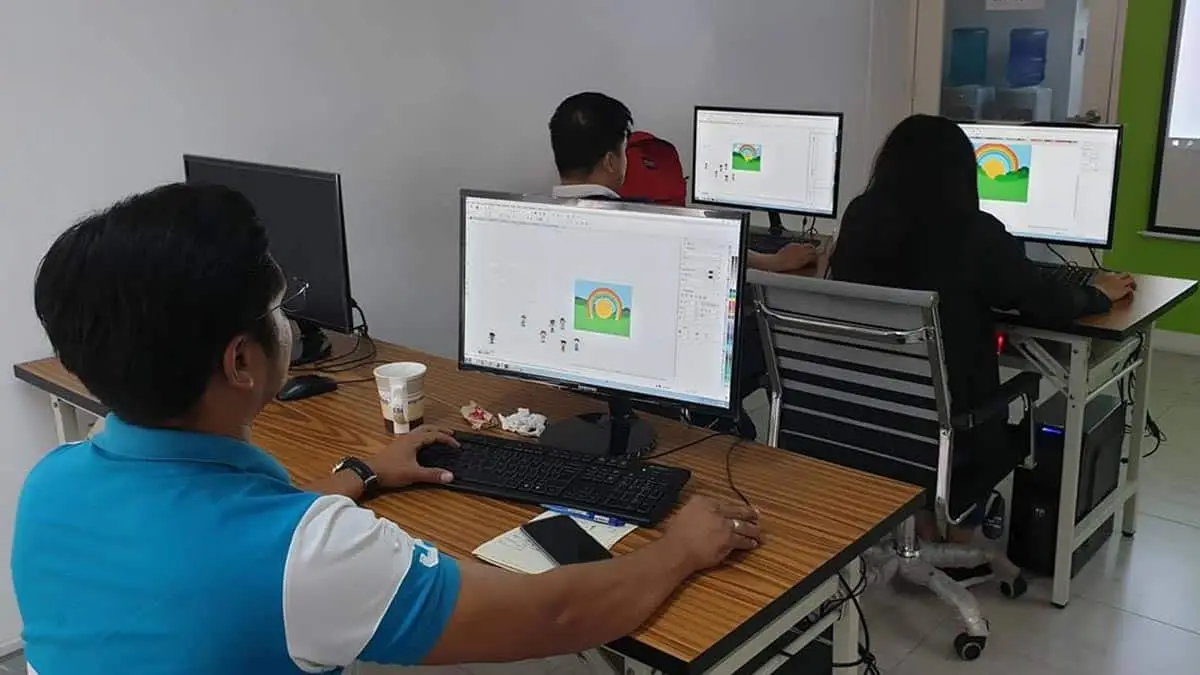
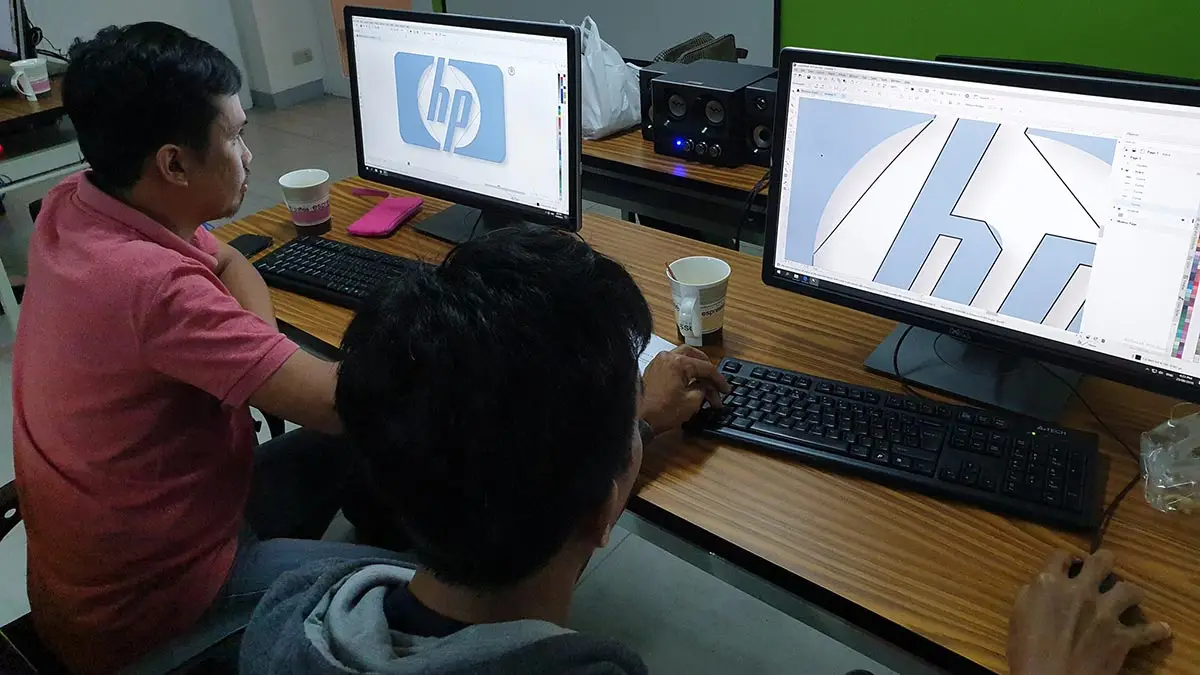
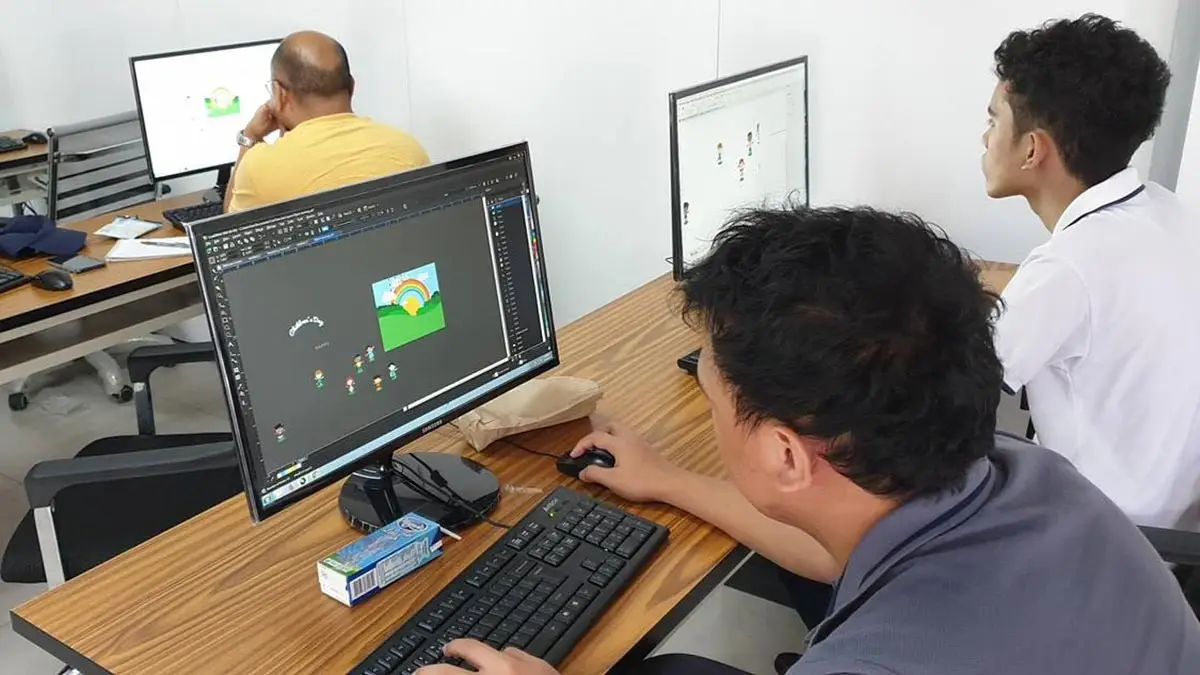
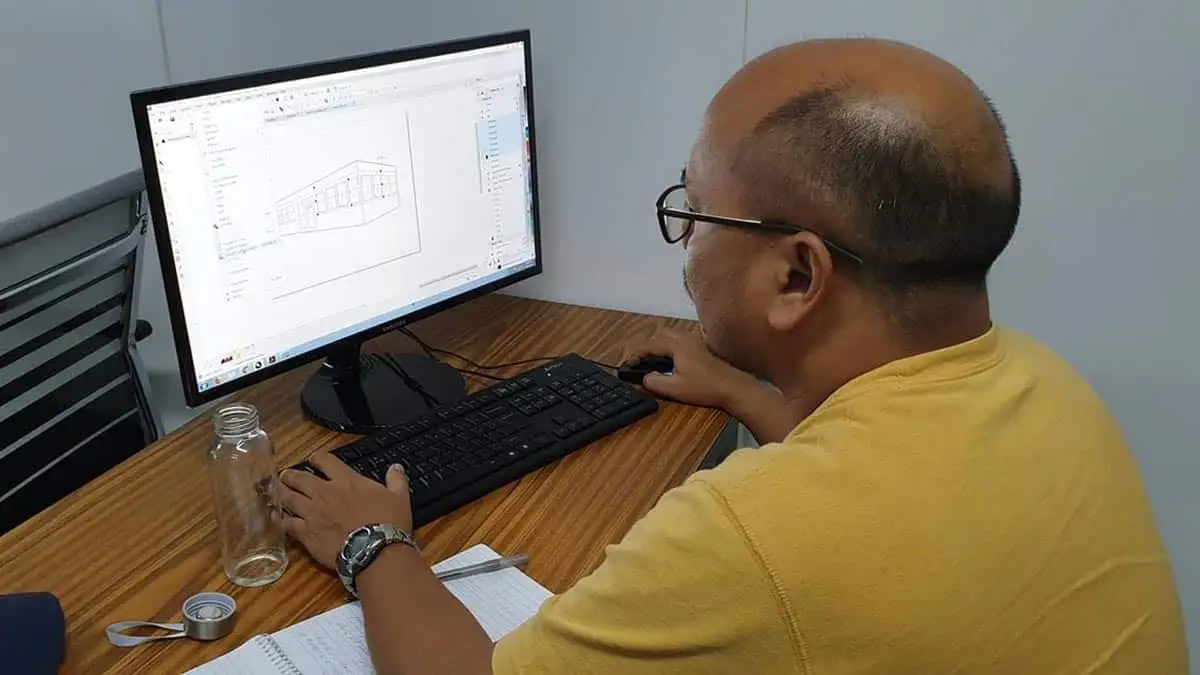
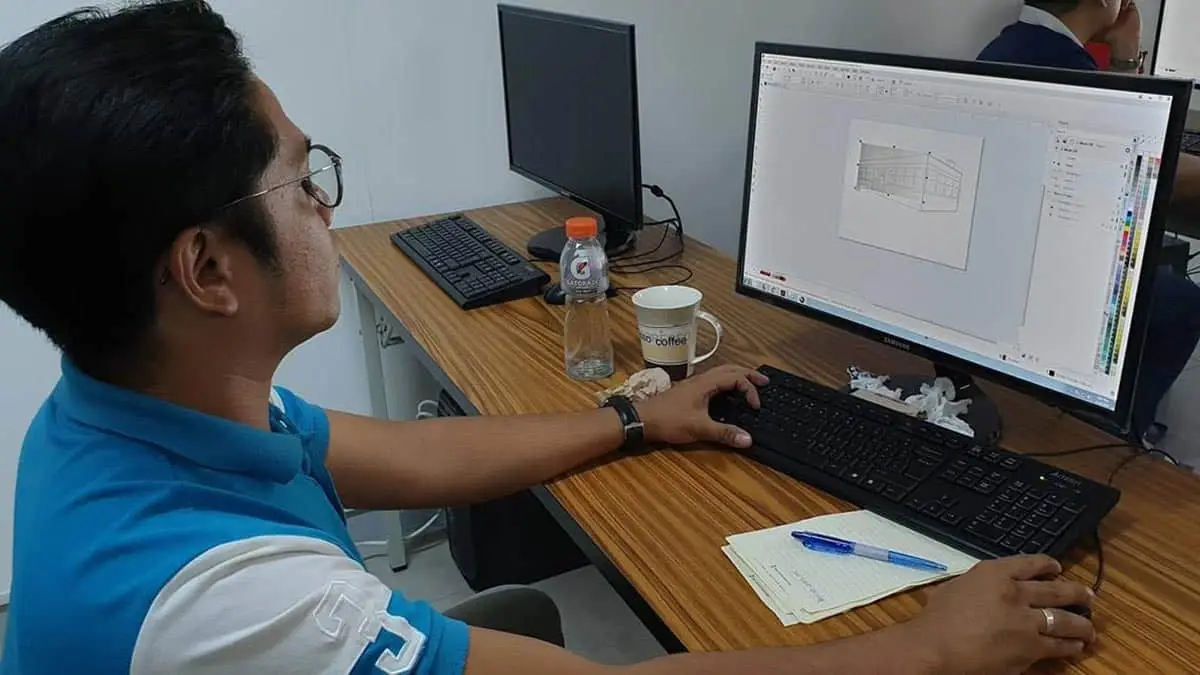
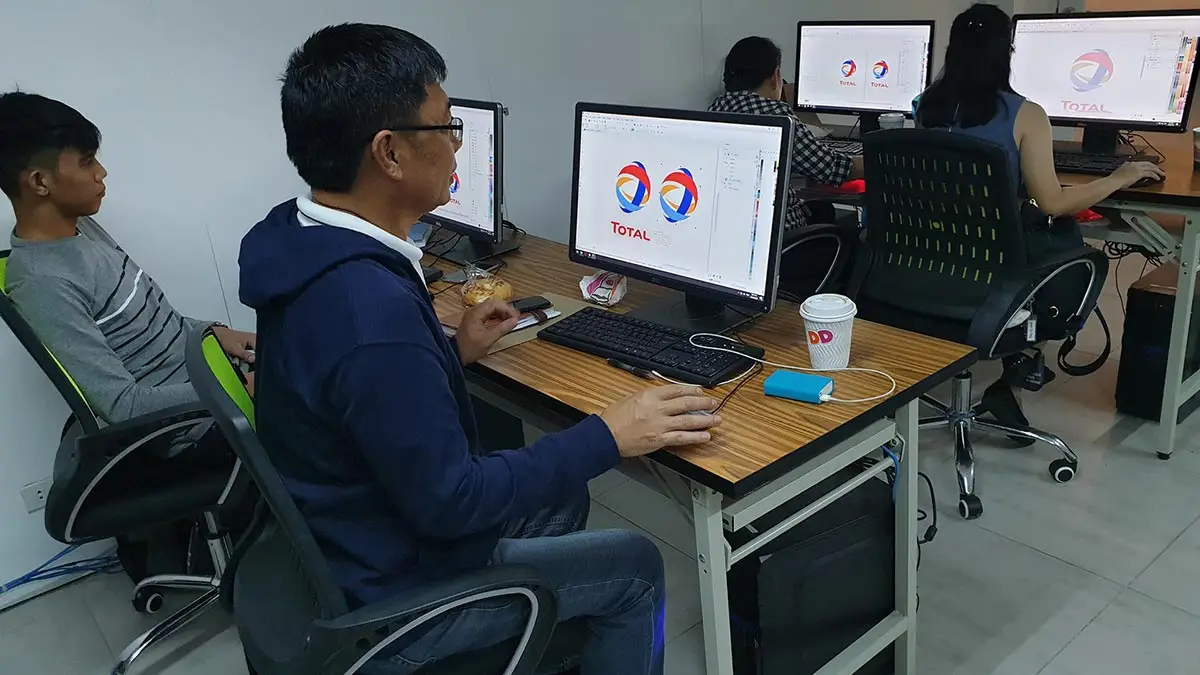

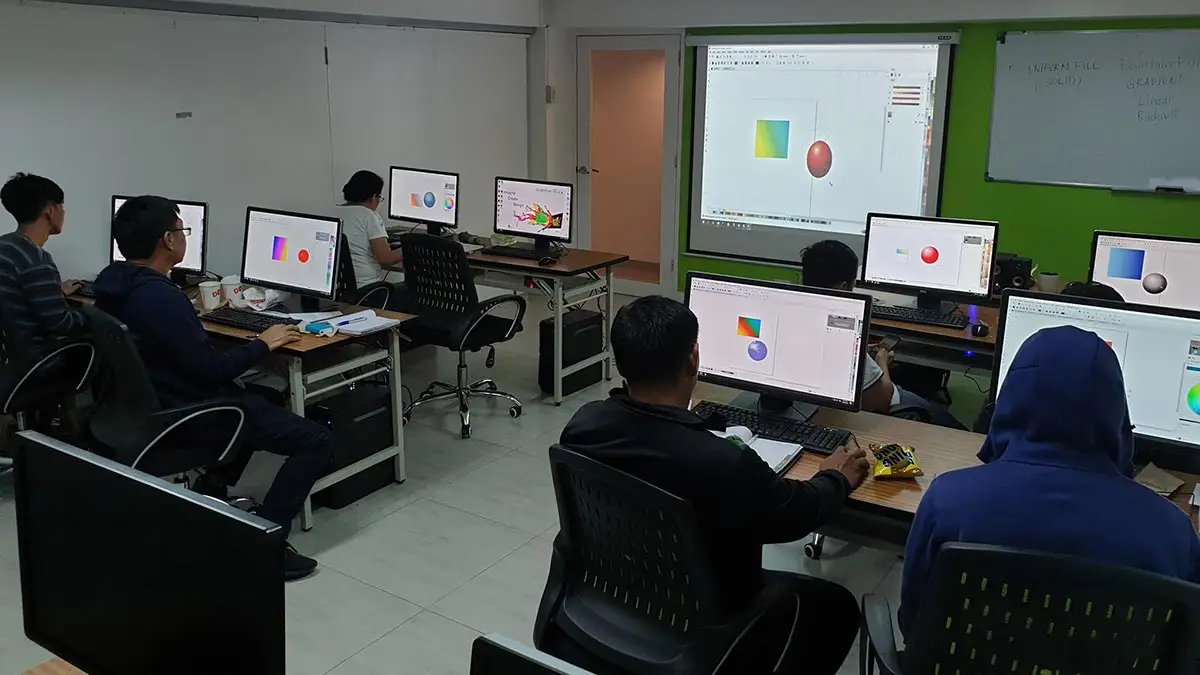
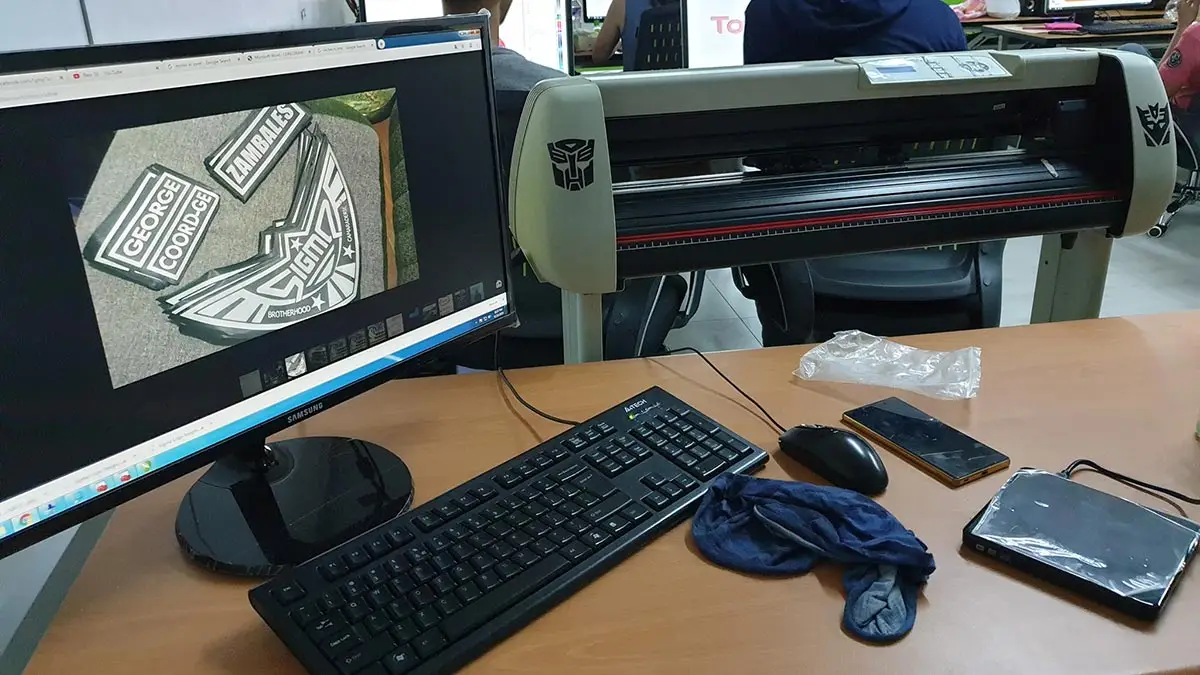
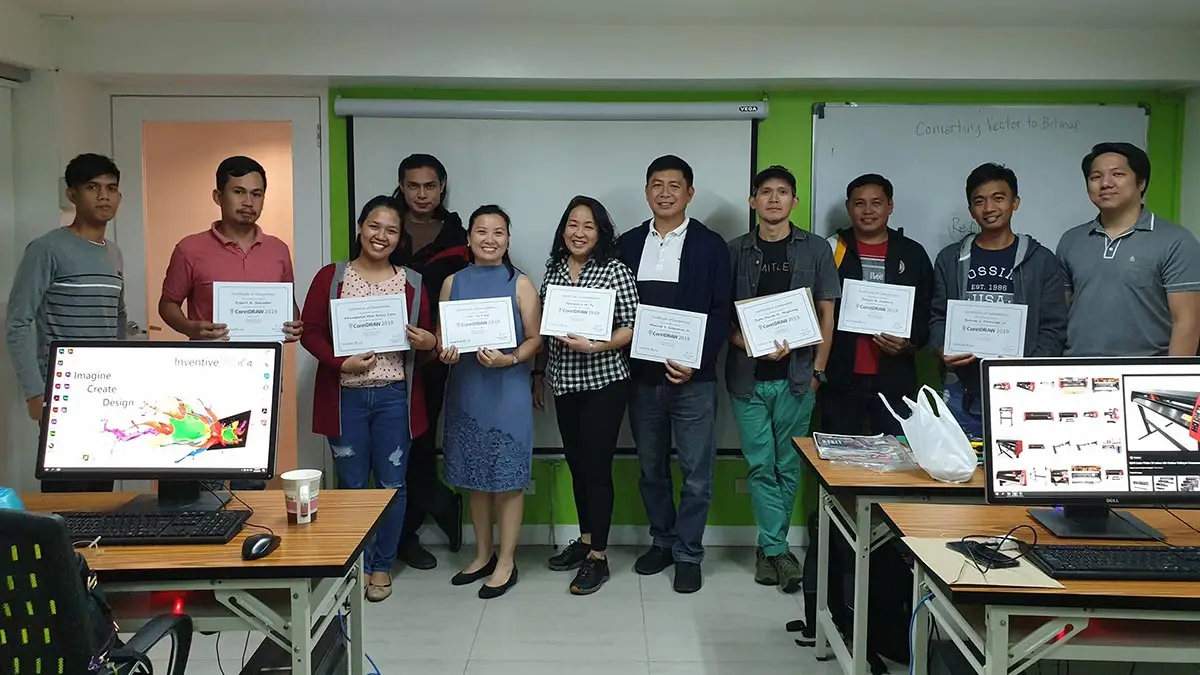
Recognized as one of the top multimedia schools in the Philippines!
- Corel Licensed Application
- Classes are led by Corel Industry Professionals
- Using CorelDRAW 2025 (Latest Version)
- Pearson Vue Accredited Testing Center
- PhilGEPS Accredited Center
- Globally Recognized Course Certificate
Course Outline
Introduction
- About CorelDRAW
- Bitmap vs Vector Graphics
- Color Modes: RGB and CMYK
- Navigating the Welcome Screen
Getting Started
- Creating a New Document
- The Importance of Bleed in Print Design
- Opening and Saving Files
- Importing Files
- Managing Multiple Documents
- Closing Documents
The CorelDRAW Workspace
- Workspace Overview
- Choosing a Workspace
- General Settings and Customization
- Touring the Workspace
- Customizing Toolbars and Menus
- Customizing Color Palettes
- Creating and Saving a Custom Workspace
Pages and Layouts
- Manage and Organize Pages
- Insert or Delete Multiple Pages
- Customize Page Sizes and Orientation
- Use Multipage View
- Manage Pages Using the Pages Docker
- Managing Guidelines and Grids
CorelDRAW Basics
- Zooming and Panning
- Selecting and Deleting Objects
- Moving and Resizing Objects
- Rotating and Skewing
- Deleting Objects
- Mirroring Objects
- Locking and Unlocking Objects
- Grouping and Ungrouping Objects
- Aligning and Distributing Objects
- Using the Align and Distribute Docker
Lines, Shapes and Curves
- Drawing Basic Shapes
Manipulate Shape, Object and Paths
- Node Editing with the Shape Tool (F10)
- Convert to Curves
- Convert Outline to Object
- Create a Boundary
Managing Layers
- Object Stacking
- Layer Basics
- Using the Master Layer
Design Time Savers
- Cut, Copy, and Paste
- Duplicating and Cloning Objects
- Cloning Objects
- Repeat
- Step and Repeat Docker
- Undo | Redo
- Working with Symbols
Transformations: Reflect, Rotate, and Symmetry
- Reflect and Rotate Using the Transform Docker
- Symmetry Drawing
Mastering Outlines
- What is an Outline (Stroke)?
- Basic Outline Properties
- Variable Outlines
Cutting and Joining Objects
- Crop Tool
- Knife Tool
- Virtual Segment Delete Tool
- Eraser Tool
- Shaping Objects
View Modes
- Wireframe View
- Normal View
- Enhanced View
- Pixel View
- Full-Screen Preview
Bitmap Effects
- Common Bitmap Effects
- Converting Vector to Bitmap
Other Effects
- Perspective
- Lens
- Bevel
- Pointillizer
Working With Text
- Creating Text
- Artistic Text
- Character Formatting (Docker)
- Paragraph Text
- Paragraph Formatting
- Columns
- Bullets and Numbering
- Drop Cap
- Placeholder Text
- Text Wrap
- Linking Paragraph Text Frames
- Fit Text to Path
- Writing Tools
Powerclip, Envelope and Corner
- PowerClip Objects
- Text PowerClip
- Applying PowerClip on a Table
- Corners Docker
Envelope and Shape Distortion
- Smooth Tool
- Smear Tool
- Twirl Tool
- Attract and Repel Tool
- Smudge Tool
- Roughen Tool
- Envelope Docker
Brushes
- Painterly Brush Tool
- Artistic Brush Tool
Colors, Fills, and Outlines
- Color Palettes
- Creating a Custom Palette
- Applying Fill Colors
- Fill Types (Fill Flyout / Properties Docker)
- Working with Outlines
- Eyedropper and Paint Bucket Tools
- Smart Fill Tool
- Color Harmony and Color Styles
- Mesh Fill (Mesh Color)
Tracing Bitmaps to Vectors
- What is Tracing?
- Automatic Tracing with PowerTRACE
- Manual Tracing for Precision
The Interactive Tools
- Interactive Blend Tool
- Interactive Contour Tool
- Interactive Distortion Tool
- Interactive Drop Shadow Tool
- Interactive Extrude Tool
- Interactive Block Shadow Tool
- Interactive Transparency Tool
- Interactive Fill Tool
Exporting Your Artwork
- Common File Formats
- Exporting for Print
- Exporting to Web
- Using the Export Docker
Frequently Asked Questions
What are the prerequisites for CorelDRAW training?
- Basic computer knowledge and skills in PC or Mac.
- Knowledge in Adobe Photoshop and Adobe Illustrator can be an advantage though not required.
What are the prerequisites for this course?
- Certificate of course completion
- Training references (PDF)
- Exercise materials
- Some add-ons
- Free trainer consultation
- Unlimited Free Retakes
How to avail the Unlimited Free Retakes?
Unlimited Retakes = Unlimited Hours of Learning!
We understand that individuals have different learning styles and paces, that’s why we offer the opportunity to learn at your own speed. If you need more time to grasp a concept, you are welcome to come back and retake the class at no additional cost. We believe in providing students with the support they need to succeed.
To Avail: Finish the course to qualify for the unlimited refresher classes
Validity: 1 Year
Who is this CorelDRAW training designed for?
This training is essential for professionals who need to bridge the gap between digital design and physical production. It is ideal for:
- Print Shop Owners & Staff: Master high-precision workflows for Direct-to-Film (DTF), sublimation, and large-format printing.
- Signage & Decal Makers: Learn to create accurate vector paths for Cutter Plotters, vinyl stickers, and vehicle wraps.
- Apparel Designers: Perfect for entrepreneurs focusing on customized garment decoration and screen printing color separations.
- Desktop Publishers: Design high-impact business cards, IDs, invitations, and multi-page brochures with production-ready layouts.
- Technical Illustrators: Gain the skills needed for laser engraving, packaging dielines, and CNC-ready vector assets.
- Marketing Professionals: Create scalable corporate branding, promotional posters, and professional marketing collateral.
What career paths are available for CorelDraw-trained professionals?
Proficiency in CorelDRAW is a high-demand skill in the production and manufacturing sectors. Graduates can pursue several specialized career paths, including:
- Commercial Print Specialist: Managing pre-press and layout for high-volume publishing, brochures, and technical manuals.
- Signage & Large Format Designer: Creating scalable vector designs for vehicle wraps, billboards, and architectural signage.
- Apparel & Merchandise Entrepreneur: Designing for the thriving Direct-to-Film (DTF), sublimation, and screen-printing industries.
- Sticker & Decal Production Artist: Engineering precise vector paths for Cutter Plotter output and automotive decals.
- Technical Illustrator: Drafting dielines for product packaging and technical schematics for the manufacturing industry.
- Branding & Logo Designer: Developing scalable visual identities and corporate assets for small-to-medium enterprises (SMEs).
Enroll now & Get a FREE
Graphic Design Essentials Course
Enroll 4 & get extra ₱500/pax off
Retake the course at no extra cost
- Basic to Advanced Coverage
- Using CorelDraw License
- Certificate of Completion
- Training Materials and References
- Free Wifi Access
- Free Unlimited Coffee
- Free Trainer Consultation
- Free Unlimited Class Retakes
OCTOBER 2026
About the Registration
Feel free to register! Registering does not commit you to paying for the course immediately. Registration helps us track attendee numbers and enables us to stay in touch. Payment will only be requested once the course is confirmed to proceed.
Note: When choosing a schedule, you are limited to the available training dates posted on our website.